

10 Excel shortcuts that will save you hours: 🕝
1. ALT H O I
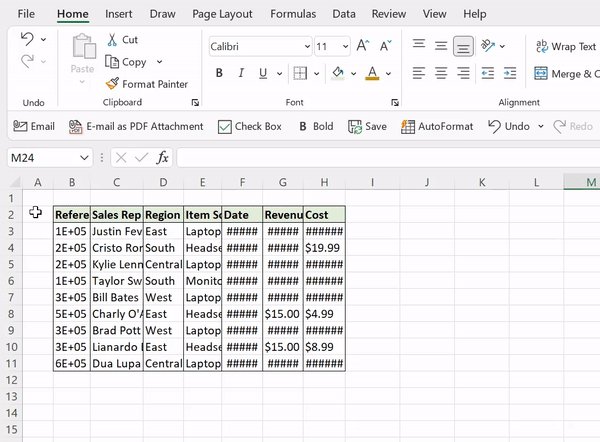
Have you ever opened a workbook and not been able to see the data? Instead of manually adjusting the column widths in the header, use ALT H O I. ALT H O I automatically adjusts the selected cells’ column widths to equal the size of their contents.
Have you ever opened a workbook and not been able to see the data? Instead of manually adjusting the column widths in the header, use ALT H O I. ALT H O I automatically adjusts the selected cells’ column widths to equal the size of their contents.
2. CTRL E
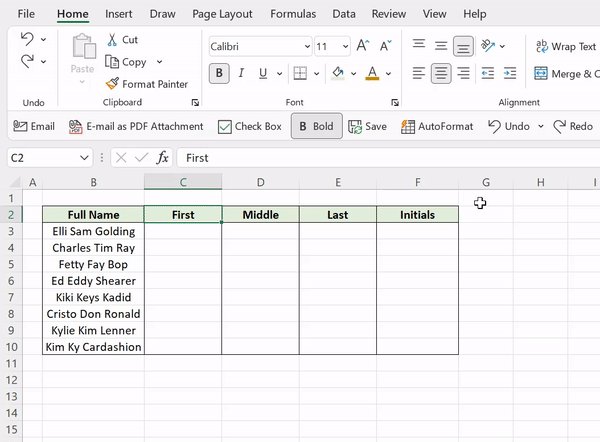
CTRL E makes complicated tasks easier than ever, thanks to Flash Fill. Flash Fill automatically fills data down a column based on detected patterns. Just enter how you want the data to appear, hit CTRL E, and Excel will fill the pattern down the column in a flash.
CTRL E makes complicated tasks easier than ever, thanks to Flash Fill. Flash Fill automatically fills data down a column based on detected patterns. Just enter how you want the data to appear, hit CTRL E, and Excel will fill the pattern down the column in a flash.
3. ALT F1
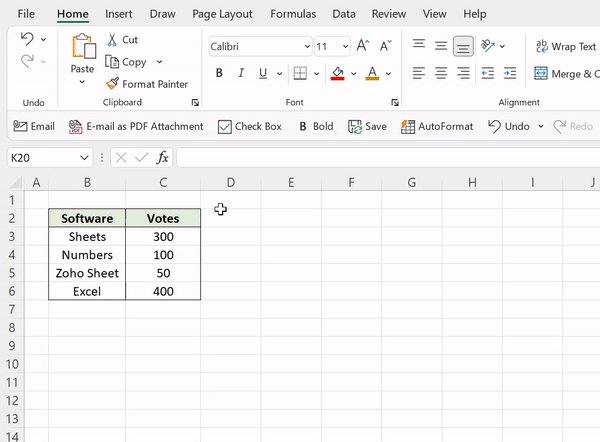
If you spend too much time creating charts to visualize data, meet ALT F1. These two magical keys automatically generate a bar chart using the selected data and insert it right into the active worksheet!
If you spend too much time creating charts to visualize data, meet ALT F1. These two magical keys automatically generate a bar chart using the selected data and insert it right into the active worksheet!
4. CTRL ENTER
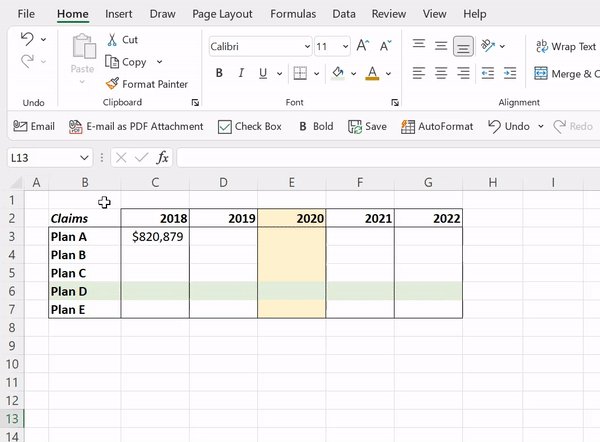
Dragging formulas down columns and then again across rows can be a drag. Say goodbye to the fill handle and hello to CTRL ENTER! CTRL ENTER fills the active cell’s contents into selected cells. Note: The active cell has to be in editing mode for this to work.
Dragging formulas down columns and then again across rows can be a drag. Say goodbye to the fill handle and hello to CTRL ENTER! CTRL ENTER fills the active cell’s contents into selected cells. Note: The active cell has to be in editing mode for this to work.
5. CTRL `
When cranking out formulas in Excel, checking each one individually in the formula bar can be tedious. Instead, try the CTRL ` shortcut! CTRL ` toggles between displaying the cells’ formulas and values in the active worksheet.
When cranking out formulas in Excel, checking each one individually in the formula bar can be tedious. Instead, try the CTRL ` shortcut! CTRL ` toggles between displaying the cells’ formulas and values in the active worksheet.
6. ALT ↓
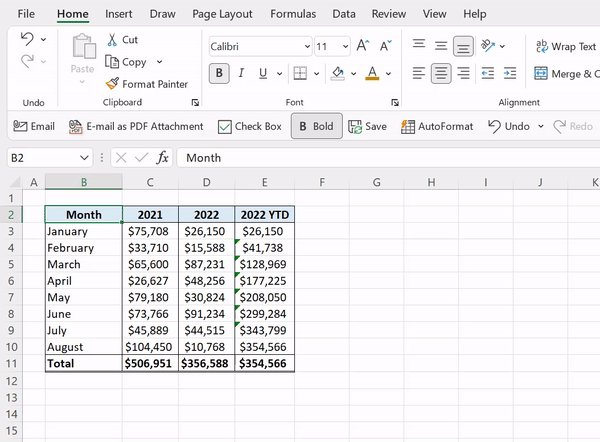
If you are entering repetitive data in Excel, ALT ↓ is a must-know shortcut. The ALT ↓ shortcut displays a dropdown list of all values previously entered in the column. Now, you can simply select any value, which will automatically be entered into the active cell!
If you are entering repetitive data in Excel, ALT ↓ is a must-know shortcut. The ALT ↓ shortcut displays a dropdown list of all values previously entered in the column. Now, you can simply select any value, which will automatically be entered into the active cell!
7. CTRL [
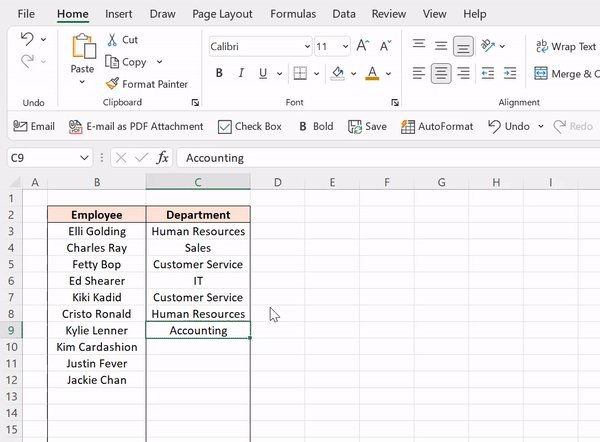
Tracing down cell references can be like finding a needle in a haystack. Instead of tracing the file path, opening the file, navigating to the worksheet and mapping the cell, just press CTRL [ to teleport to a cell reference. So much faster.
Tracing down cell references can be like finding a needle in a haystack. Instead of tracing the file path, opening the file, navigating to the worksheet and mapping the cell, just press CTRL [ to teleport to a cell reference. So much faster.
8. ALT W FF
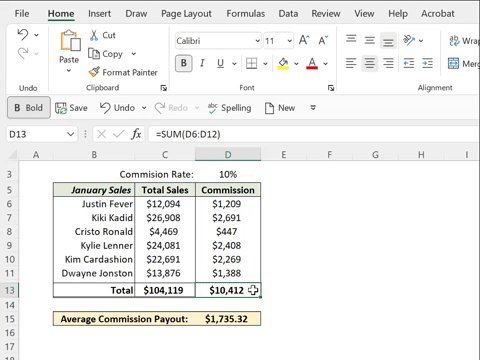
Nothing’s worse than not being able to see headers when scrolling through a worksheet. To prevent this, select the first cell containing data in the table and press ALT W FF to freeze the panes. Now, the headers remain visible when scrolling throughout the worksheet.
Nothing’s worse than not being able to see headers when scrolling through a worksheet. To prevent this, select the first cell containing data in the table and press ALT W FF to freeze the panes. Now, the headers remain visible when scrolling throughout the worksheet.
9. CTRL SHIFT L
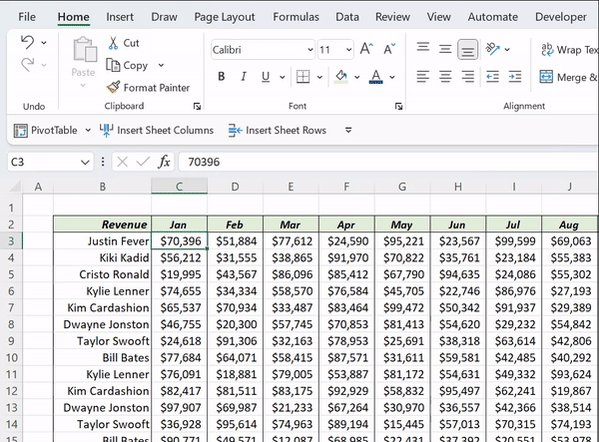
Last but not least, CTRL SHIFT L. CTRL SHIFT L makes analyzing large data sets a little easier by adding the Sort &Filter toggles to the top row of the data set, so you can quickly sort and filter data.
Last but not least, CTRL SHIFT L. CTRL SHIFT L makes analyzing large data sets a little easier by adding the Sort &Filter toggles to the top row of the data set, so you can quickly sort and filter data.

7. CTRL T
Start getting into the routine of using Tables with CTRL T. CTRL T converts data to an Excel Table. Tables are a powerful tool that clean up formatting, auto-fill formulas down columns, automatically expand and update linked charts when new rows are added, and more!
Start getting into the routine of using Tables with CTRL T. CTRL T converts data to an Excel Table. Tables are a powerful tool that clean up formatting, auto-fill formulas down columns, automatically expand and update linked charts when new rows are added, and more!

Share with a friend who loves Excel shortcuts as much as you!
Follow @exceldictionary for more tips and tricks.
To learn all of Excel’s shortcuts and productivity hacks like this, check out my new course, ebooks, merch, and more linked below. 👇🏼
shop-excel-dictionary.com
Follow @exceldictionary for more tips and tricks.
To learn all of Excel’s shortcuts and productivity hacks like this, check out my new course, ebooks, merch, and more linked below. 👇🏼
shop-excel-dictionary.com

Loading suggestions...