

A Complete Guide to Browser Notification
A Thread 🧵
A Thread 🧵

📃 Table of content:
❍ Overview
❍ Check browser compatibility
❍ Request permission from the users
❍ Create a new notification
❍ Provide more options in the Notification constructor
❍ Add event listeners
❍ Close the notification after a specific period of time
❍ Overview
❍ Check browser compatibility
❍ Request permission from the users
❍ Create a new notification
❍ Provide more options in the Notification constructor
❍ Add event listeners
❍ Close the notification after a specific period of time
❍ Overview
- Sometimes we need to display notifications to the users with extra information. In that case, JavaScript provides a Notification API in order to achieve this goal.
- It allows us to show desktop notifications to the users.
- Sometimes we need to display notifications to the users with extra information. In that case, JavaScript provides a Notification API in order to achieve this goal.
- It allows us to show desktop notifications to the users.
- Since notifications can be irritating for many users, that's why JavaScript provides a security feature by default:
⛔ "Users must explicitly agree to receive notifications"
⛔ "Users must explicitly agree to receive notifications"
❍ Check browser compatibility
- Before using this Notification API in our project first we need to check the browser compatibility. Most browsers support this API.
- Before using this Notification API in our project first we need to check the browser compatibility. Most browsers support this API.
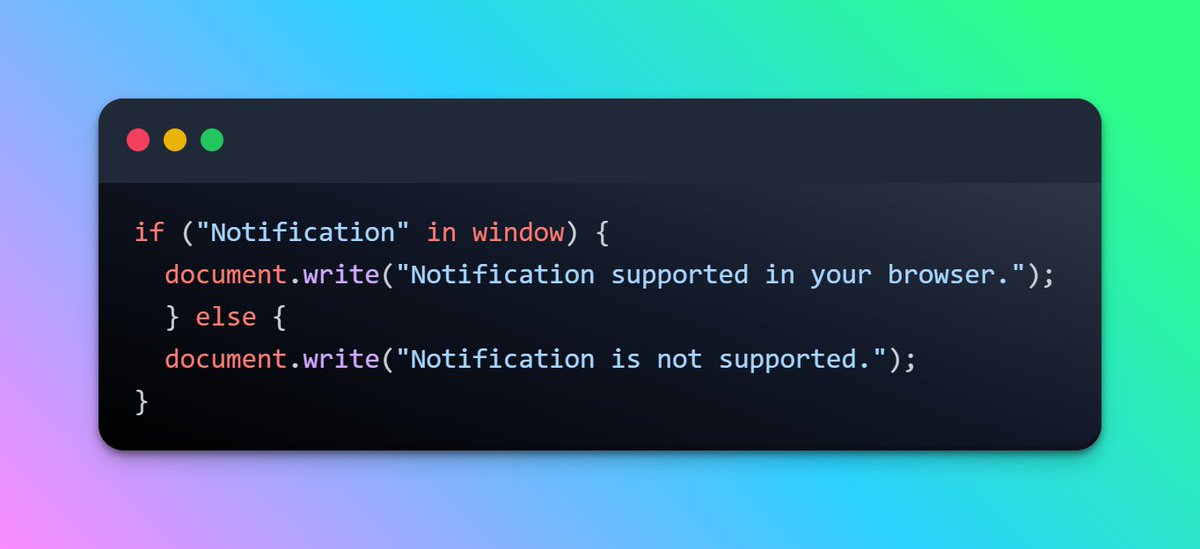
- Once the browser support now we can implement more logic inside the Notification API.
- So the first step is to request permission to display the notification to the users.
- So the first step is to request permission to display the notification to the users.
❍ Request permission from the users
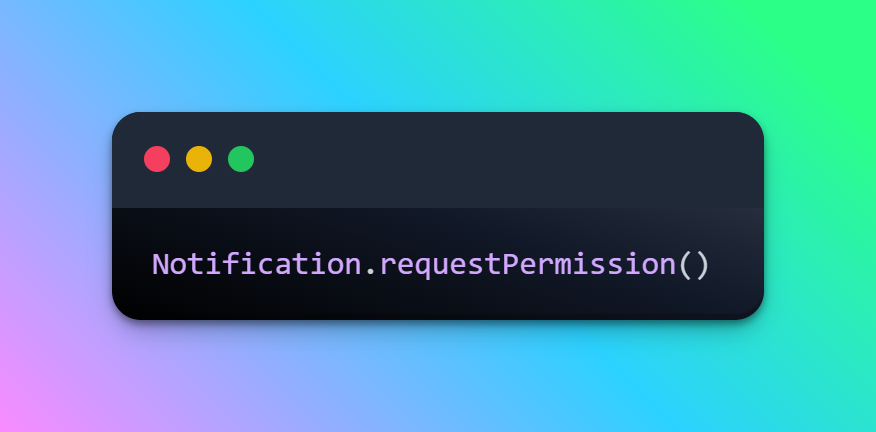
- There is a requestPermission() method in the Notification object that is used to ask permission from the users. This method returns a promise.
- The permission can be one of the following:
1. granted
2. denied
3. default
- There is a requestPermission() method in the Notification object that is used to ask permission from the users. This method returns a promise.
- The permission can be one of the following:
1. granted
2. denied
3. default
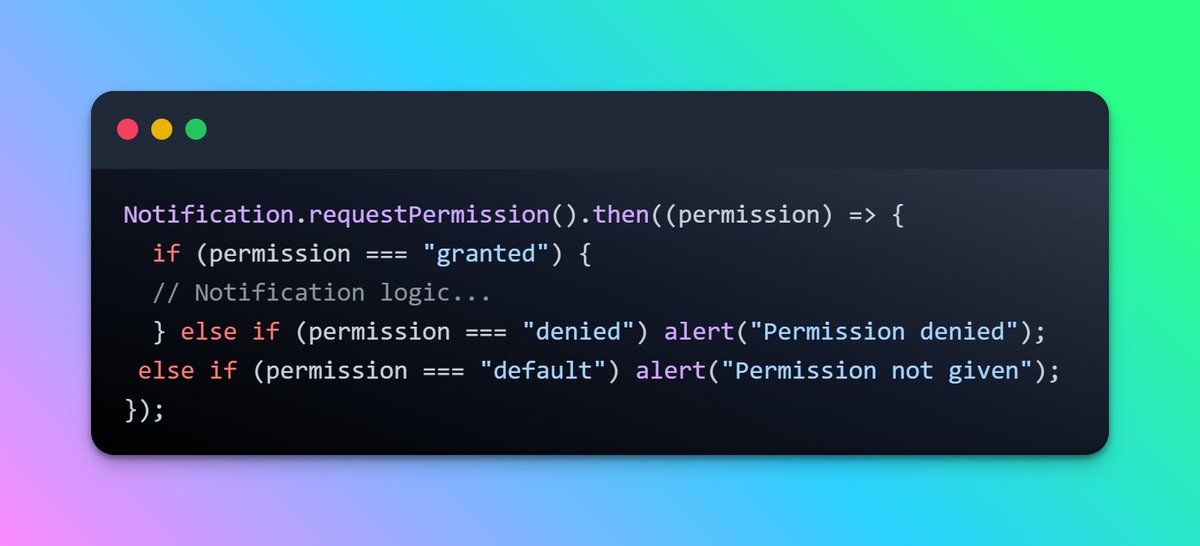
1. granted: Users accept to receive the notification.
2. denied: The user denied receiving the notification.
3. default: Users are ignoring and will act as "denied"
- Now we can resolve the promise using the then() method and check the required conditions.
2. denied: The user denied receiving the notification.
3. default: Users are ignoring and will act as "denied"
- Now we can resolve the promise using the then() method and check the required conditions.
❍ Create a new notification
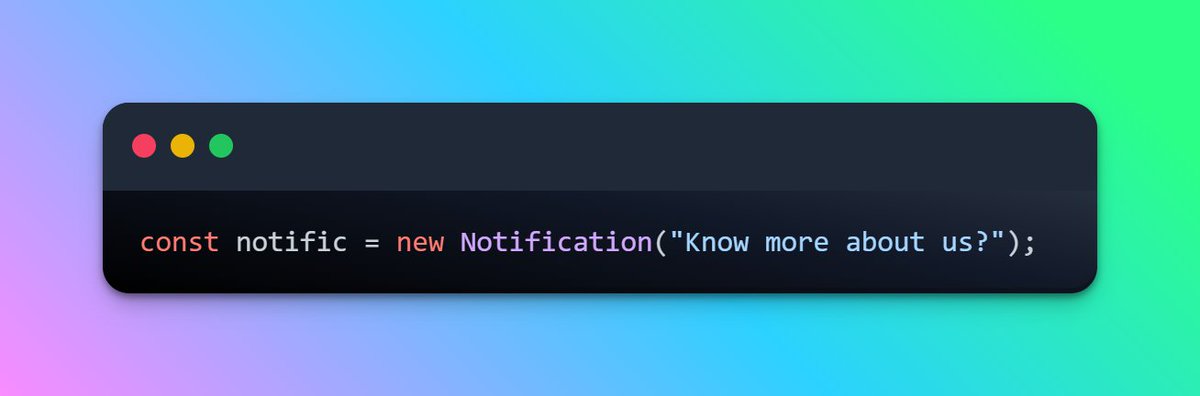
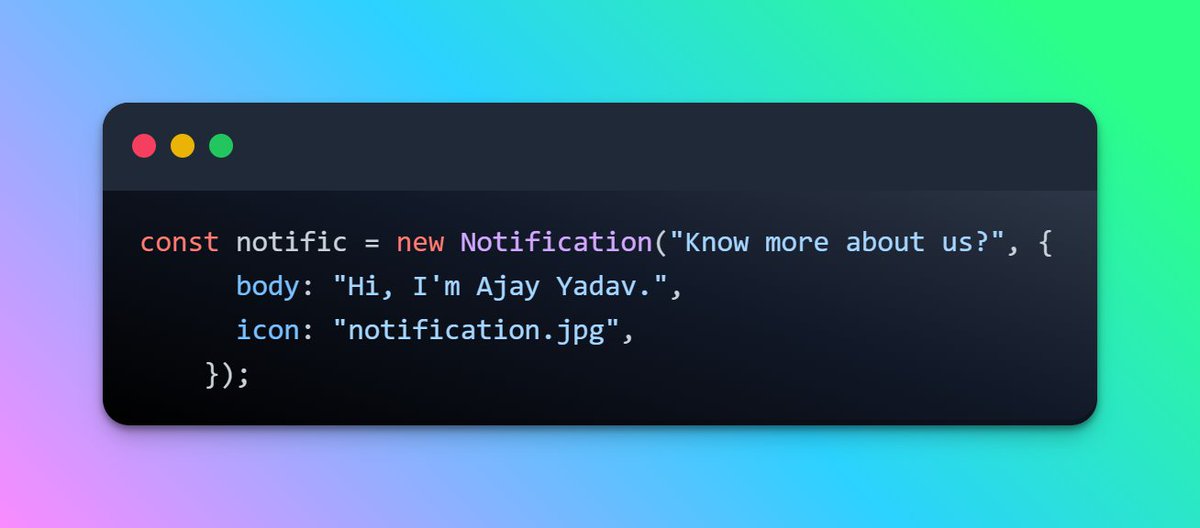
- Once the user has granted permission, we can create a new notification using their constructor.
- I've passed the title of the notification to the constructor function.
- Once the user has granted permission, we can create a new notification using their constructor.
- I've passed the title of the notification to the constructor function.
❍ Provide more options in the Notification constructor
- We can also make notifications more interesting using the options parameters.
- body: explain more about the title of the notification.
- icon: set an icon to the notification.
- We can also make notifications more interesting using the options parameters.
- body: explain more about the title of the notification.
- icon: set an icon to the notification.
❍ Add event listeners
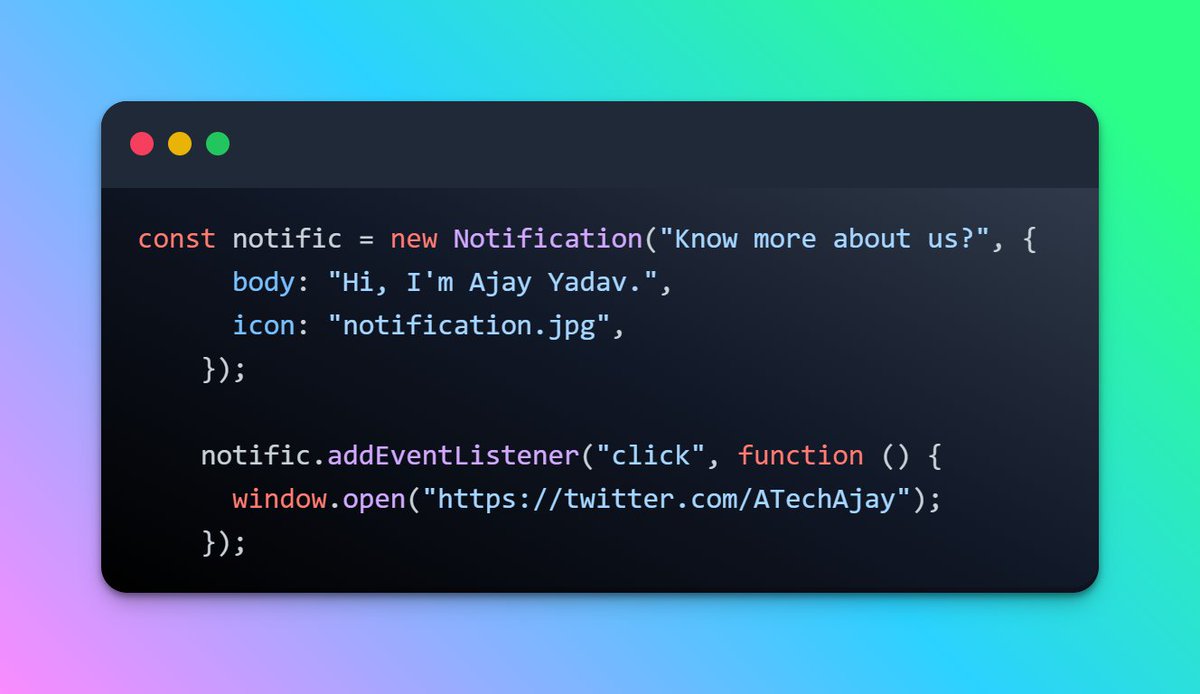
- Now, this is one of the lovely features, where we can listen to an event on the Notification object.
- Suppose I want to open a specific link when I click on the notification. so it can be done using the addEventListener() function.
- Now, this is one of the lovely features, where we can listen to an event on the Notification object.
- Suppose I want to open a specific link when I click on the notification. so it can be done using the addEventListener() function.
❍ Close the notification after a specific period of time
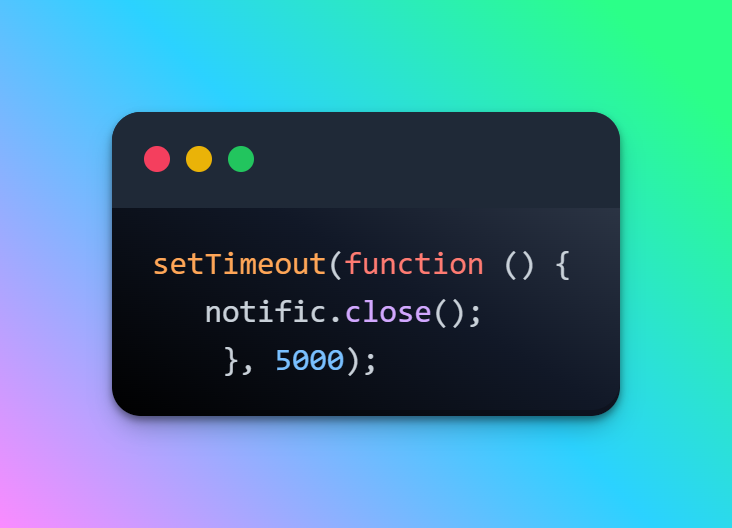
- Now, after displaying the notification, we want to close it after a specific period of time. We can also achieve this goal using the setTimeout() function.
- So after 5 seconds, this notification will disappear.
- Now, after displaying the notification, we want to close it after a specific period of time. We can also achieve this goal using the setTimeout() function.
- So after 5 seconds, this notification will disappear.
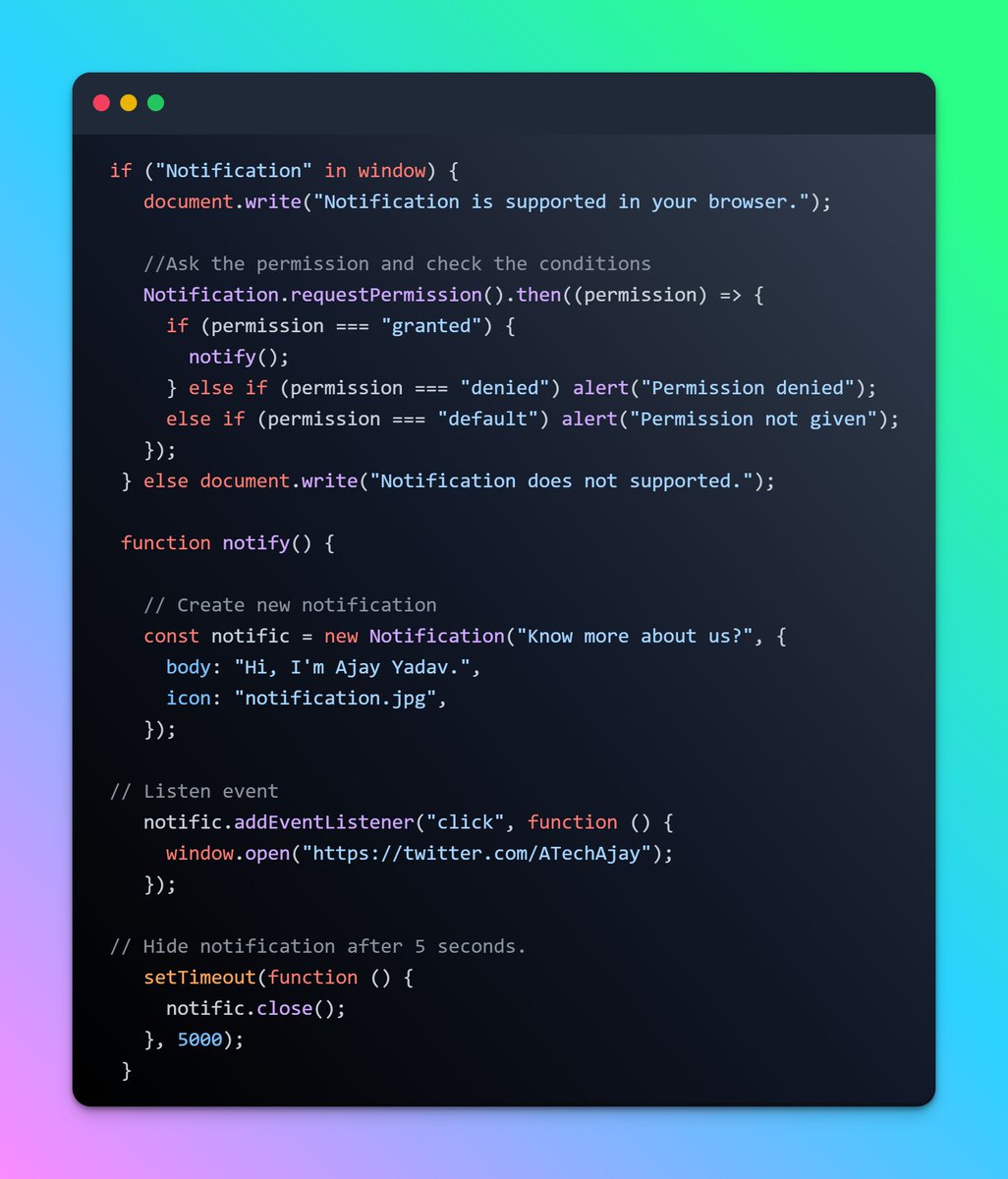
Here is the final code for this notification object.🥰
Loading suggestions...