

Retire your mouse with these 5 shortcuts:
1. CTRL SHIFT \
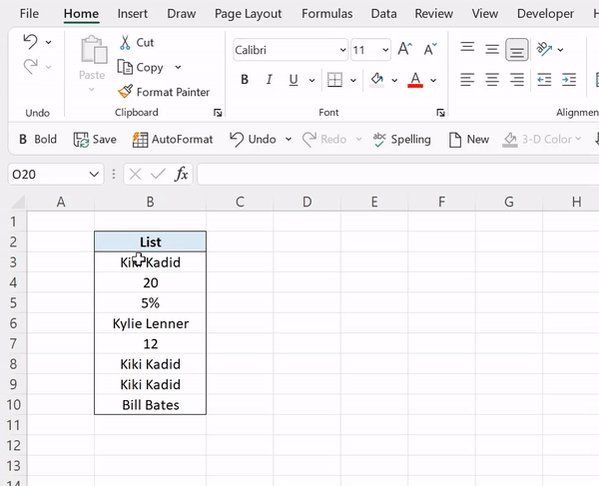
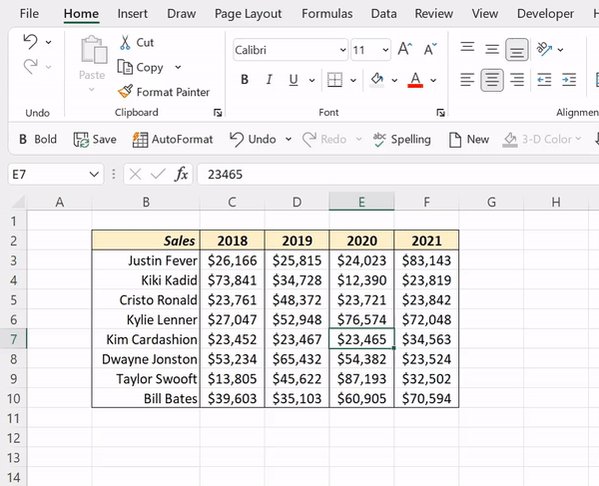
Tired of manually filtering and selecting unique values within a column? Try selecting the column and hitting CTRL SHIFT \. The CTRL SHIFT \ shortcut selects the cells within the column that don't match the active cell’s value (or formula).
Tired of manually filtering and selecting unique values within a column? Try selecting the column and hitting CTRL SHIFT \. The CTRL SHIFT \ shortcut selects the cells within the column that don't match the active cell’s value (or formula).
2. CTRL SHIFT F
Need to quickly adjust fonts throughout your spreadsheet? Meet CTRL SHIFT F, your new go-to for all your font formatting needs. CTRL SHIFT F opens the Font tab of the Format Cells dialog box. This tab is used to control the selected cells' font attributes.
Need to quickly adjust fonts throughout your spreadsheet? Meet CTRL SHIFT F, your new go-to for all your font formatting needs. CTRL SHIFT F opens the Font tab of the Format Cells dialog box. This tab is used to control the selected cells' font attributes.
3. CTRL ALT 5
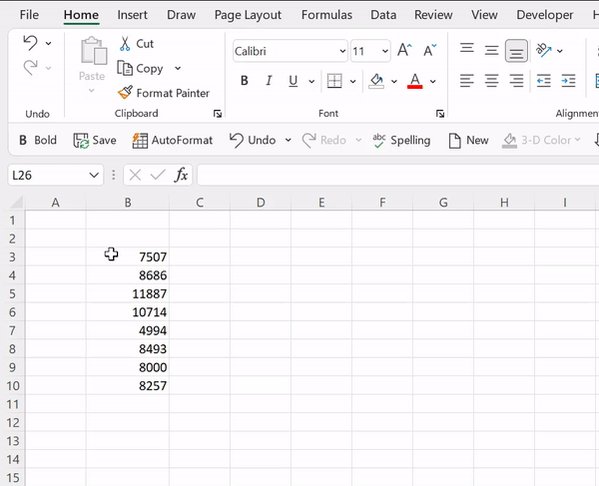
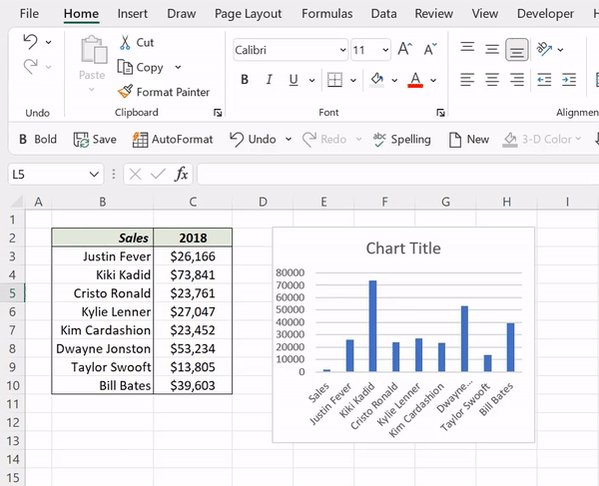
Ditch the mouse when selecting worksheet objects using these keys! CTRL ALT 5 automatically selects the first object in the worksheet. To select all the objects in your worksheet, press CTRL SHIFT SPACEBAR after CTRL ALT 5.
Ditch the mouse when selecting worksheet objects using these keys! CTRL ALT 5 automatically selects the first object in the worksheet. To select all the objects in your worksheet, press CTRL SHIFT SPACEBAR after CTRL ALT 5.
4. CTRL SHIFT [
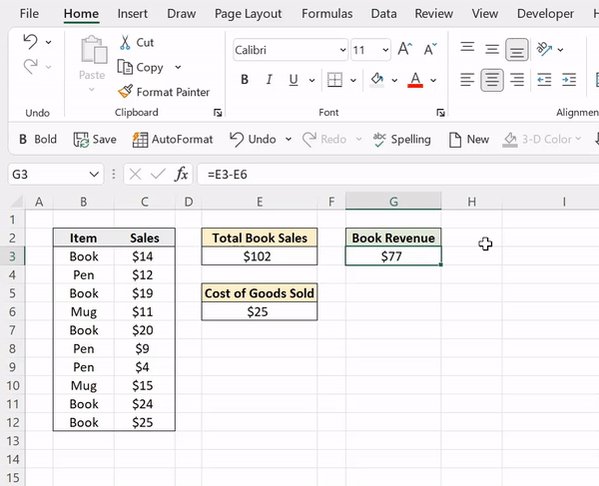
Tracing cells referenced in formulas can be like finding a needle in a haystack. Save yourself the hassle and use this shortcut. CTRL SHIFT [ finds and selects all cells directly and indirectly referenced in the active cell's formula.
Tracing cells referenced in formulas can be like finding a needle in a haystack. Save yourself the hassle and use this shortcut. CTRL SHIFT [ finds and selects all cells directly and indirectly referenced in the active cell's formula.
5. F8
Never click and drag to extend your selection again. F8 locks the selected cells and adds all adjacent cells to the current selection using the arrow keys. This adds adjacent cells to the current selection without using the mouse.
Never click and drag to extend your selection again. F8 locks the selected cells and adds all adjacent cells to the current selection using the arrow keys. This adds adjacent cells to the current selection without using the mouse.
Follow @exceldictionary for more tips and tricks.
To learn all of Excel’s shortcuts and productivity hacks like this, check out my new course, ebooks, merch, and more linked below. 👇🏼
excel-dictionary.com
To learn all of Excel’s shortcuts and productivity hacks like this, check out my new course, ebooks, merch, and more linked below. 👇🏼
excel-dictionary.com
Loading suggestions...