

Git and GitHub mini course!
Git is difficult to understand.
But you don't need to learn everything.
Learn these 13 Git commands because you'll be using them 99% of the time:
Git is difficult to understand.
But you don't need to learn everything.
Learn these 13 Git commands because you'll be using them 99% of the time:
1. `git init`
Initialize a new Git repository.
This creates a new subdirectory named ".git" in the current directory, where Git stores all the metadata for the repository.
Initialize a new Git repository.
This creates a new subdirectory named ".git" in the current directory, where Git stores all the metadata for the repository.
2. `git clone`
Clone an existing repository.
This creates a local copy of the repository, including all of its history and branches.
`git clone <repo-link>`
Clone an existing repository.
This creates a local copy of the repository, including all of its history and branches.
`git clone <repo-link>`
3. `git add`
Stage changes for the next commit.
This adds the specified file(s) to the staging area, where they will be included in the next commit.
`git add file1.txt file2.txt`
Stage changes for the next commit.
This adds the specified file(s) to the staging area, where they will be included in the next commit.
`git add file1.txt file2.txt`
4. `git commit`
Create a new commit.
This records the staged changes and any additional changes made since the last commit, along with a commit message describing the changes.
`git commit -m "Add new feature"`
Create a new commit.
This records the staged changes and any additional changes made since the last commit, along with a commit message describing the changes.
`git commit -m "Add new feature"`
5. `git push`
Push commits to a remote repository.
This sends the local commits to the specified remote repository, updating the branch on the remote with the new commits.
`git push origin main`
Push commits to a remote repository.
This sends the local commits to the specified remote repository, updating the branch on the remote with the new commits.
`git push origin main`
6. `git pull`
Fetch and merge changes from a remote repository.
This retrieves the latest commits from the specified remote repository and merges them into the current branch.
`git pull origin main`
Fetch and merge changes from a remote repository.
This retrieves the latest commits from the specified remote repository and merges them into the current branch.
`git pull origin main`
7. `git branch`
List, create, or delete branches.
This command can be used to list the available branches in a repository, create a new branch, or delete an existing branch.
`git branch new-branch`
List, create, or delete branches.
This command can be used to list the available branches in a repository, create a new branch, or delete an existing branch.
`git branch new-branch`
8. `git checkout`
Switch to a different branch.
This command allows you to switch to a different branch in the repository and make it the current working branch.
`git checkout main`
Switch to a different branch.
This command allows you to switch to a different branch in the repository and make it the current working branch.
`git checkout main`
9. `git merge`
Merge one branch into another.
This command combines the changes from one branch into another branch, creating a new commit that reflects the merged changes.
`git merge new-branch`
Merge one branch into another.
This command combines the changes from one branch into another branch, creating a new commit that reflects the merged changes.
`git merge new-branch`
10. `git status`
Show the status of the repository.
This command displays the current branch, any staged or unstaged changes, and any untracked files.
`git status`
Show the status of the repository.
This command displays the current branch, any staged or unstaged changes, and any untracked files.
`git status`
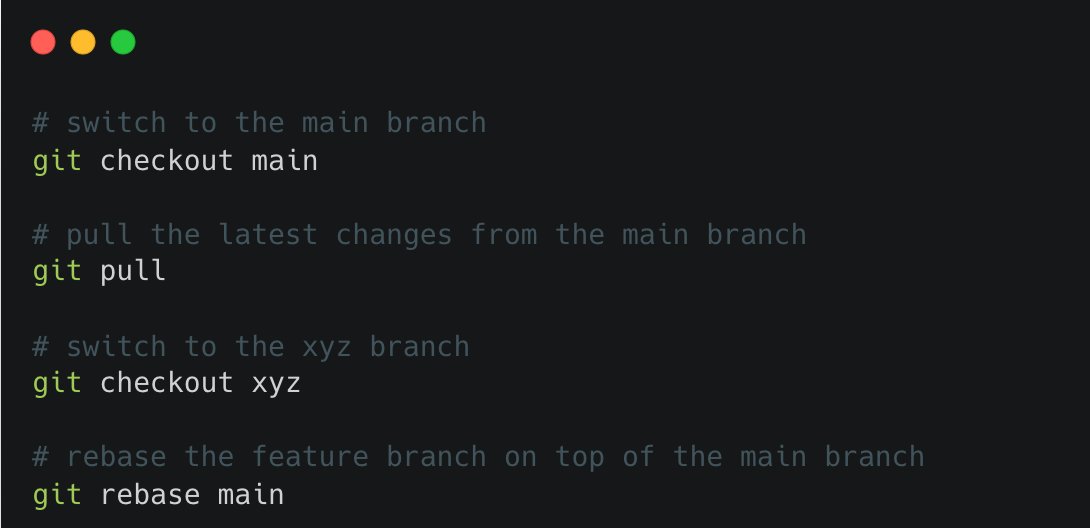
11. `git rebase`
Incorporate changes from one branch into another branch.
Let's say you have made some changes on an "XYZ" branch that you want to incorporate into the "main" branch. You can use git rebase to reapply your changes on top of the main branch.
Incorporate changes from one branch into another branch.
Let's say you have made some changes on an "XYZ" branch that you want to incorporate into the "main" branch. You can use git rebase to reapply your changes on top of the main branch.
12. `git stash`
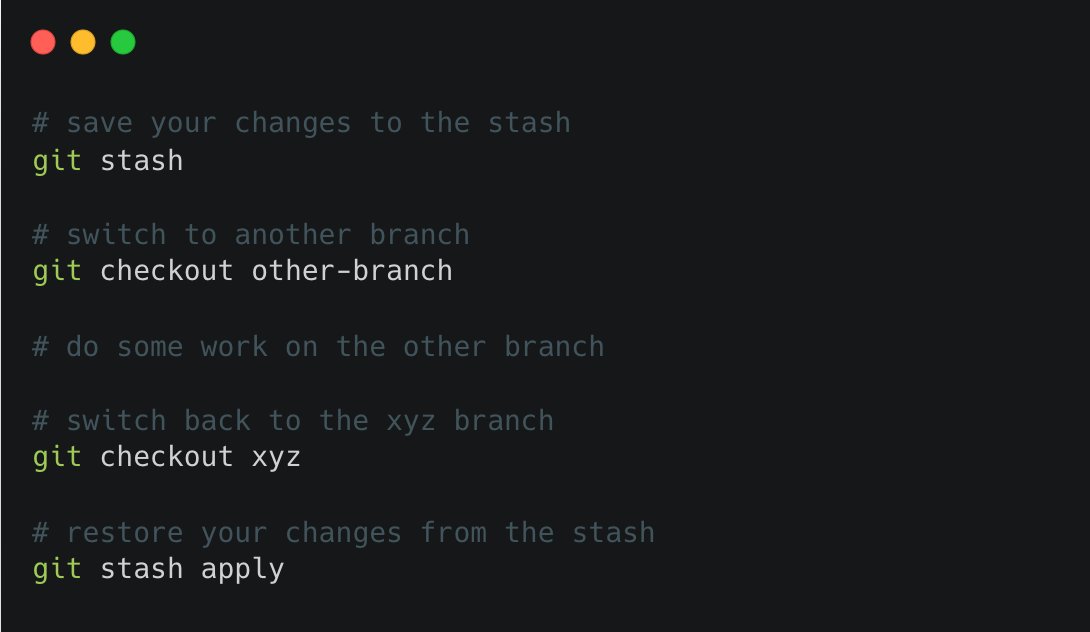
Temporarily save changes that you are not yet ready to commit.
If your changes are not ready to commit but you want to work on a different branch, you can temporarily save your changes for later use and switch branches without losing your progress.
Temporarily save changes that you are not yet ready to commit.
If your changes are not ready to commit but you want to work on a different branch, you can temporarily save your changes for later use and switch branches without losing your progress.
13. `git revert`
Let's say you have made a mistake in a previous commit and you need to undo it. You can use git revert to create a new commit that undoes the changes introduced by the previous commit.
`git revert <commit1>..<commit2>`
Let's say you have made a mistake in a previous commit and you need to undo it. You can use git revert to create a new commit that undoes the changes introduced by the previous commit.
`git revert <commit1>..<commit2>`
Loading suggestions...