

Linux shell scripting basic - changing directory in shell scripts:
Often times, you may want to run a shell script that changes your current working directory to another directory for convenience.
For example, if you frequently visit your documents directory (~/Documents) & want to navigate there quickly, you can write a Bash script to do so.
For example, if you frequently visit your documents directory (~/Documents) & want to navigate there quickly, you can write a Bash script to do so.
In this thread, I will show you how to do it with the cd command. Along the way, I will explain some of the complexities of how cd behaves.
We will start with the most common issue you'll encounter:
We will start with the most common issue you'll encounter:
A Common Problem
Let's begin with a script that navigates to the ~/Documents directory. I'll refer to it as chdir [.] sh:
Let's begin with a script that navigates to the ~/Documents directory. I'll refer to it as chdir [.] sh:

Breaking down our code:
Let's have a breakdown of the code inroder to understand how it works:
• cd /home/linuxopsys/Documents - changes the current working directory to ~/Documents.
Let's have a breakdown of the code inroder to understand how it works:
• cd /home/linuxopsys/Documents - changes the current working directory to ~/Documents.
• pwd - prints the working directory.
• echo $$ - $$ is a Bash internal variable containing the Process ID (PID) of the shell that is executing your script.
• echo $$ - $$ is a Bash internal variable containing the Process ID (PID) of the shell that is executing your script.

Notice, running our script results in the expected output of /home/linuxopsys/Documents as well as the process ID of the shell.
We have also checked to see if the direcotory has been changed using the pwd command after our script execution was complete.
We have also checked to see if the direcotory has been changed using the pwd command after our script execution was complete.
After running the pwd command you can clearly see that our directory has not changed.
This is not what we expected because the current directory had not been changed to /home/linuxopsys/Documents. So, what could be the issue?
Let's take a look at the process ID of our shell:
This is not what we expected because the current directory had not been changed to /home/linuxopsys/Documents. So, what could be the issue?
Let's take a look at the process ID of our shell:

We can clearly see that the process ID of the shell we're in (197577 ) and the shell script (204628) are totally different.
This is common behavior. The script is run in its own independent shell (subshell/childshell). At the end of the script, this separate shell exits, leaving the parent shell, which we are currently in unaffected.
The question now is, how do we solve this problem? So, continue reading.
Running scripts in parent shell
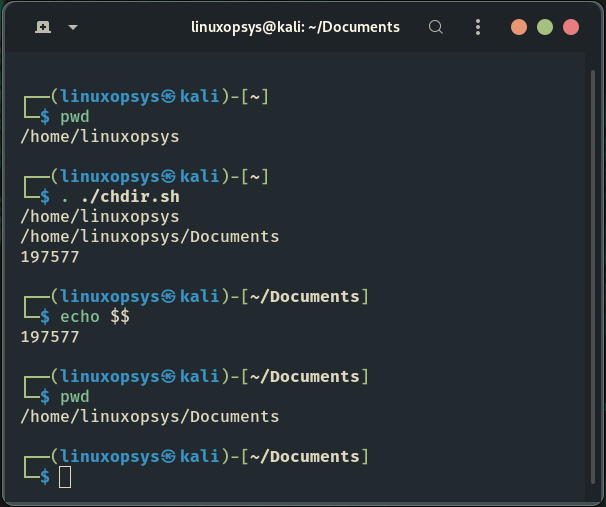
We can use the source command to allow our script to execute commands in the current shell (parent shell).
We can use the source command to allow our script to execute commands in the current shell (parent shell).
The source command executes commands within the current shell context rather than starting a new shell to do so. The dot operator is a shortcut alias for the source command (.).
Great! As a result, we can execute bash script in the current shell.
Great! As a result, we can execute bash script in the current shell.

The above snippet clearly shows that the script's PID is that of the parent shell that executed it, and our parent shell's current directory is now ~/Documents.
Nice! So far, we've shown that we can run shell scripts in the current shell by using source.
Nice! So far, we've shown that we can run shell scripts in the current shell by using source.
Alternatively, we could have used the short-form . operator.
$ . ./chdir.sh
$ . ./chdir.sh
Making Use of Bash Functions
It's a pain to write a Bash script for each directory. Instead, we could combine several Bash commands into a single script:
It's a pain to write a Bash script for each directory. Instead, we could combine several Bash commands into a single script:


As you notice functions can handy as they allows us to group certain piece of code to perform its own functionality without the need to create multiple scripts to do so.
Now, let's have a look at the last method of getting arround the cd command complexities when used in shell scripts:
Using Aliases
Using the built-in alias command, we can improve our Bash functions even further. Because it requires less typing, an alias is more convenient to use than a function.
Let's convert our functions into their alias variants:
Using the built-in alias command, we can improve our Bash functions even further. Because it requires less typing, an alias is more convenient to use than a function.
Let's convert our functions into their alias variants:


When compared to the previous bash functions, we can see how concise this is. Furthermore, the alias can be used in the same manner as the functions.
That's it!
In this thread, we've seen several ways to use the cd command from within Bash scripts.
That's it!
In this thread, we've seen several ways to use the cd command from within Bash scripts.
To begin, we discovered that running a shell script initiates its own process. Finally, we looked at how functions and the alias command could help us improve our Bash scripts.
Thank you for making it this far & hopefully you found this thread helpful feedback is really appreciated
Finnaly, do check us out @linuxopsys if you liked this thread!!
As we will be tweeting more about Linux, sysadmin and devops on a daily basis.
Finnaly, do check us out @linuxopsys if you liked this thread!!
As we will be tweeting more about Linux, sysadmin and devops on a daily basis.
Loading suggestions...