

Here are 8 ways to double your Gmail productivity today: 📩
1/ Mute Conversations:
We've all been there.
Copied on an email chain with several other people, on a topic that's somewhere south of relevant to you.
No worries. Just mute the conversation.
•Select the message
•Click the 3 dot icon above
•Select "mute"
We've all been there.
Copied on an email chain with several other people, on a topic that's somewhere south of relevant to you.
No worries. Just mute the conversation.
•Select the message
•Click the 3 dot icon above
•Select "mute"

2/ Look like you're working (when you're not)
Gmail offers scheduling... Who knew?
No need to be physically sitting at your desk, or hammering out emails on your phone after hours.
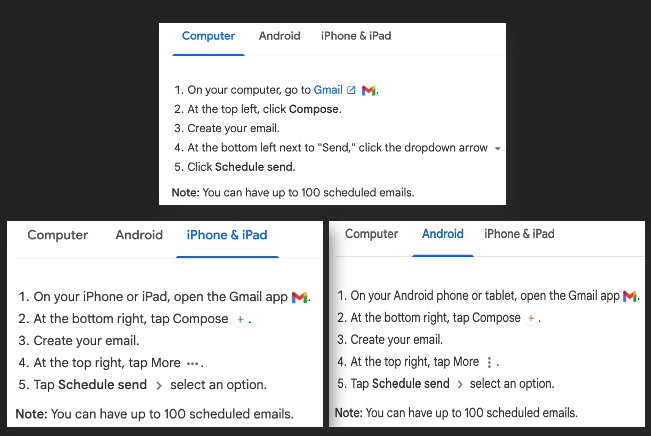
•Compose your message
•Click the dropdown next to "send"
•Click "schedule send"
Gmail offers scheduling... Who knew?
No need to be physically sitting at your desk, or hammering out emails on your phone after hours.
•Compose your message
•Click the dropdown next to "send"
•Click "schedule send"
3/ Send pre-set replies:
Tired of typing the same responses time and time again?
Never fear, canned responses are here!
•Head to settings > all-settings
•Locate "templates"
•Click "enable"
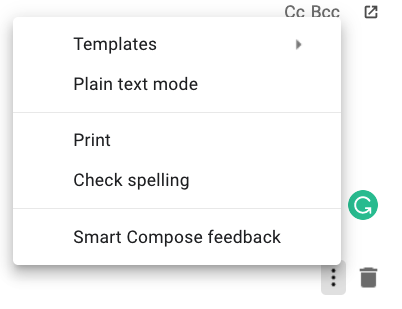
Templates can be inserted through the "more options" menu in the compose toolbar.
Tired of typing the same responses time and time again?
Never fear, canned responses are here!
•Head to settings > all-settings
•Locate "templates"
•Click "enable"
Templates can be inserted through the "more options" menu in the compose toolbar.
4/ Remove those annoying tabs:
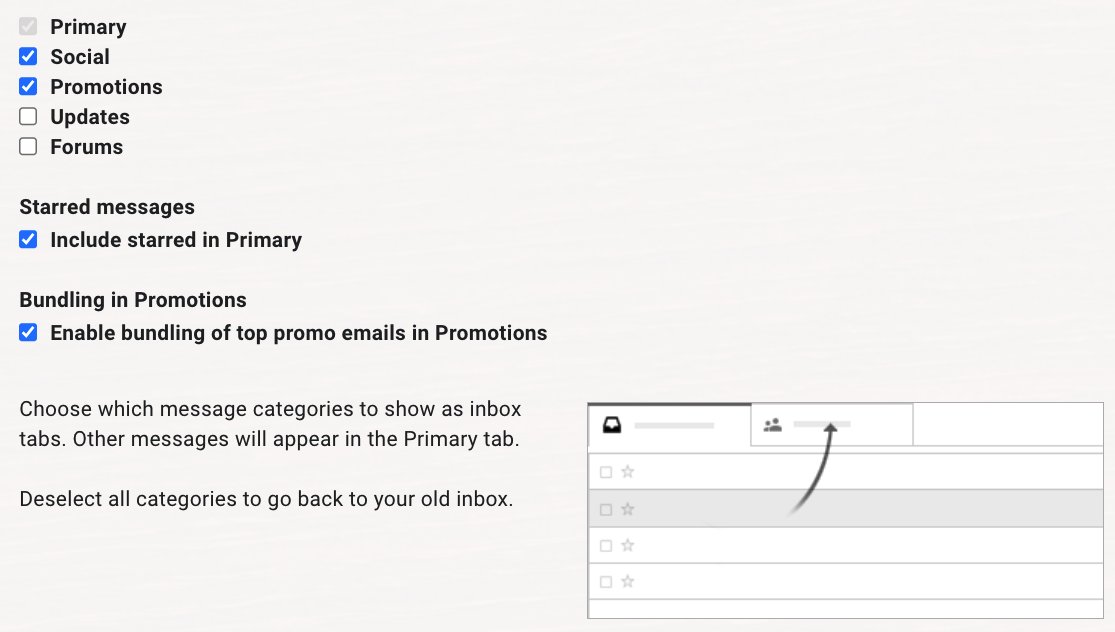
Maybe it's just me, but I hate the "social & promotions" tabs that come with the standard Gmail setup.
Let's trash them, & get all your mail in one place.
•Head to settings > all-settings
•Inbox > categories
•Choose which to show as tabs
Maybe it's just me, but I hate the "social & promotions" tabs that come with the standard Gmail setup.
Let's trash them, & get all your mail in one place.
•Head to settings > all-settings
•Inbox > categories
•Choose which to show as tabs
5/ Preview emails:
Converting from Outlook & miss your "preview pane?"
Gmail lets you preview as well.
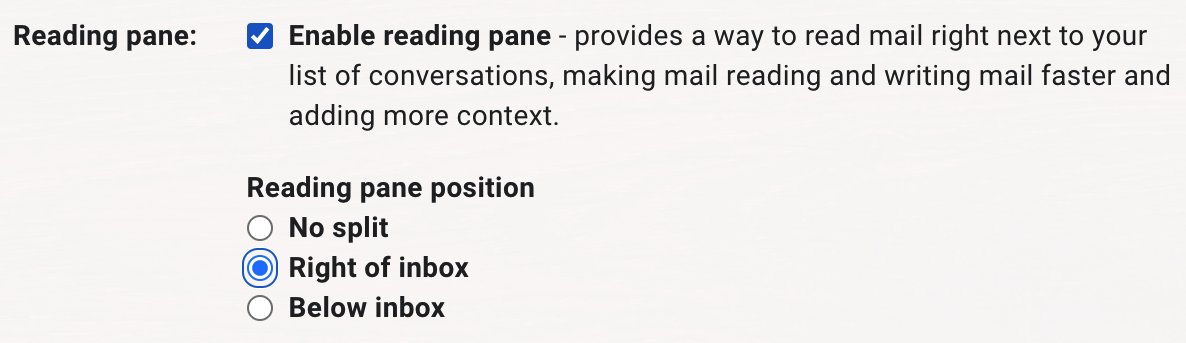
•Head to settings > all-settings
•Locate Inbox > enable reading pane
Now you can read mail right next to your inbox - Read & write faster while adding more context.
Converting from Outlook & miss your "preview pane?"
Gmail lets you preview as well.
•Head to settings > all-settings
•Locate Inbox > enable reading pane
Now you can read mail right next to your inbox - Read & write faster while adding more context.
6/ Keyboard shortcuts:
Save time using Gmail's built-in shortcuts.
Navigate your inbox, format text: Archive, delete, & more.
•Head to settings > all-settings
•Locate general > keyboard shortcuts
•Select "on"
Need a complete list?
Type "shift + ?" with Gmail open.
Save time using Gmail's built-in shortcuts.
Navigate your inbox, format text: Archive, delete, & more.
•Head to settings > all-settings
•Locate general > keyboard shortcuts
•Select "on"
Need a complete list?
Type "shift + ?" with Gmail open.

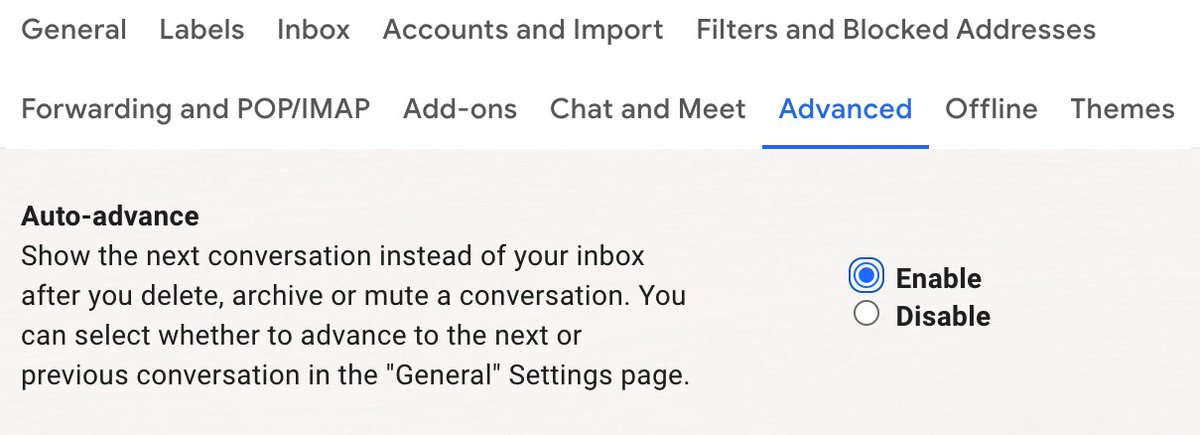
7/ Auto-advance:
"Inbox zero" sure sounds nice.
Speed up the process of deleting emails by enabling "auto-advance."
Once on, Gmail won't send you back to your inbox each time you delete an opened message.
•Head to settings > all-settings
•Advanced > auto-advance
•Enable
"Inbox zero" sure sounds nice.
Speed up the process of deleting emails by enabling "auto-advance."
Once on, Gmail won't send you back to your inbox each time you delete an opened message.
•Head to settings > all-settings
•Advanced > auto-advance
•Enable
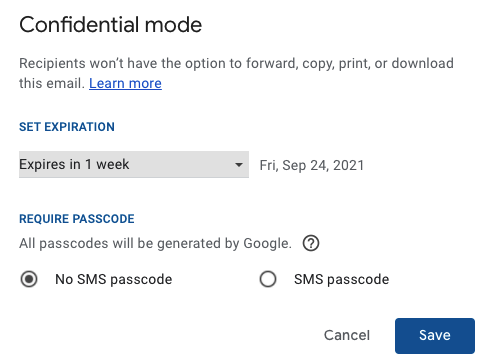
8/ Self-destructing emails:
In Gmail, this is known as "Confidential Mode"
•Navigate to compose an email
•Locate the 🔒 icon at the bottom
•Click & set the expiration date
You can even require an SMS passcode for the recipient to open the message!
In Gmail, this is known as "Confidential Mode"
•Navigate to compose an email
•Locate the 🔒 icon at the bottom
•Click & set the expiration date
You can even require an SMS passcode for the recipient to open the message!
If you enjoy being more productive, you'd probably like my spreadsheet template library as well.
• Budgets
• Habit trackers
• Debt calculators & more.
Find them all here: 👇🏻
blakeburge.com
• Budgets
• Habit trackers
• Debt calculators & more.
Find them all here: 👇🏻
blakeburge.com
Last, join 25K others and get tips like these in your inbox each week for free.
Sign up & view previous issues below.
blakeburge.com
Sign up & view previous issues below.
blakeburge.com
Loading suggestions...