

In Linux, if you run a command or script in a terminal, it will be terminated as soon as you exit your terminal.
But what if you want it to run in the background until it finishes, even if you exit the terminal? The nohup allows you to do that.
Learn more on nohup in this 🧵↓
But what if you want it to run in the background until it finishes, even if you exit the terminal? The nohup allows you to do that.
Learn more on nohup in this 🧵↓
The nohup command, which stands for "no hangup," executes another program specified as its argument while blocking all SIGHUP (hangup) signals sent to the program or process.
SIGHUP is a signal that is sent to a process reporting that the terminal controlling it has disconnected or closed.
If you close a terminal by accident, or if you are using ssh and lose connection or log out from the server, any processes that are currently active from the terminal are immediately terminated.
The nohup command comes in handy here. All hangup signals are ignored, and the processes will continue to run normally.
How to make use of the nohup command:
The nohup command has the following syntax:
$ nohup COMMAND [ARG]
OR
$ nohup OPTION
The nohup command has the following syntax:
$ nohup COMMAND [ARG]
OR
$ nohup OPTION
The nohup command is very simple; it has only two options:
--help - show this help and then exit
--version - print the version number and exit.
--help - show this help and then exit
--version - print the version number and exit.
Let’s take a look at the following example:
Say, you to compress large amount of data using tar command and ensure that the compression continues even if you close the terminal window accidentally. To do so, use the following command:
$ nohup tar -cvzf backup.tar.gz backups
Say, you to compress large amount of data using tar command and ensure that the compression continues even if you close the terminal window accidentally. To do so, use the following command:
$ nohup tar -cvzf backup.tar.gz backups

In the preceding example, nohup will execute the tar command in the foreground and redirect the tar command's output to the nohup.out file. This file is generated in your current working directory.
$ cat nohup.out
$ cat nohup.out

If the user has no write permissions to the working directory, the file is generated in the user's home directory.
The tar command process will continue to execute even if you log out or close the terminal.
The tar command process will continue to execute even if you log out or close the terminal.
Backgrounding the nohup command process
Using nohup in the foreground is ineffective because some commands or scripts can take long time to process and you won't be able to interact with the shell until the command completes.
Using nohup in the foreground is ineffective because some commands or scripts can take long time to process and you won't be able to interact with the shell until the command completes.
To run the command in the background is very simple, append the ampersand (&) symbol at the end of the command.
When you use the ampersand symbol after a command, it separates it from the current shell and runs it as a background process on the system.
When you use the ampersand symbol after a command, it separates it from the current shell and runs it as a background process on the system.
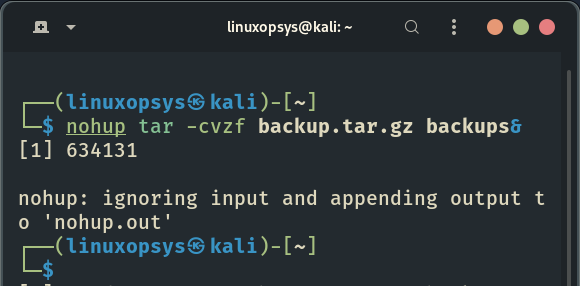
The first thing displayed in square brackets is the job number [1] assigned to the background process by the shell. The next number (634131) is the process ID (PID) assigned to the process by the Linux system.
A new command-line interface prompt appears as soon as the system displays these items. You can see, you are returned to your current shell, and the command you executed will be safely running in the background.
At this point, you can now enter new commands at the prompt.
At this point, you can now enter new commands at the prompt.
Using the fg command, you can use the job ID to bring the command to the foreground.
$ fg 634131
If you need to kill the process for any reason, use the kill command followed by the process ID:
$ kill -9 634131
$ fg 634131
If you need to kill the process for any reason, use the kill command followed by the process ID:
$ kill -9 634131
nohup command defaults to redirecting command output to the nohup.out file. Use the standard shell redirection to direct the output to a different file.
To redirect standard output and standard error to tar-logs.out, for example, use:
$ nohup tar -cvzf backup.tar.gz backups > tar-logs.out 2>&1 &
$ nohup tar -cvzf backup.tar.gz backups > tar-logs.out 2>&1 &
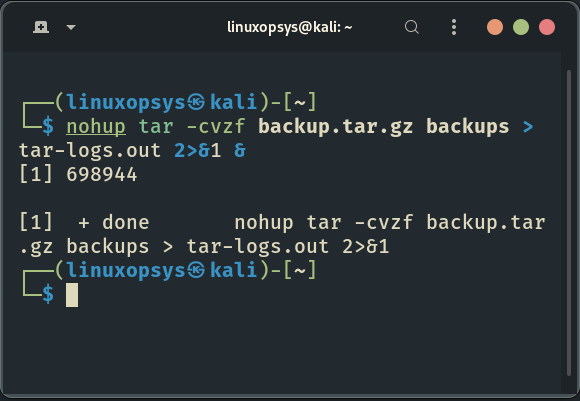
If you want to redirect standard output and standard error to different files, use the following command:
$ nohup tar -cvzf backup.tar.gz backups > tar-logs.out 2> tar-log-errors.out
$ nohup tar -cvzf backup.tar.gz backups > tar-logs.out 2> tar-log-errors.out
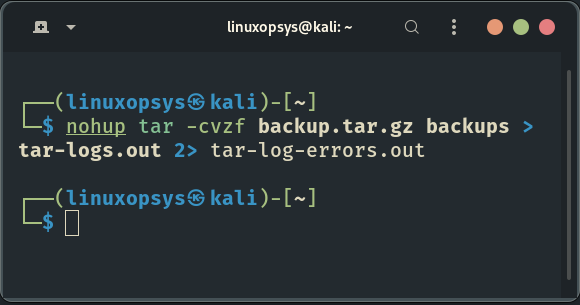
If you want to learn more about Linux command redirections we have wrote a thread on that, you can find it on the link below:

You are not limited to using nohup to prevent a command from being terminated when you close the terminal or become disconnected. There are several other programs that can do the same thing; here are a few examples:
1. disown - is a shell builtin that removes a shell job from the shell's job control. Disown, unlike nohup, can be used on running processes.
3. screen - also known as GNU Screen, is a terminal multiplexer program that allows you to launch a screen session and open an unlimited number of windows (virtual terminals) within it.
Even if you are disconnected, processes running in Screen will continue to run even if their window is not visible.
3. tmux - is a modern replacement for the GNU screen. You can also use Tmux to create a session and open multiple windows within that session. Because Tmux sessions are persistent, programs running in Tmux will continue to run even if you close the terminal.
That's it for this thread!
Hope you learn anything new from this thread? If so, please let us know by replying in the comments.
If you're new here, do toss us a follow us (@linuxopsys) for more threads, tips and resources on Linux.
Hope you learn anything new from this thread? If so, please let us know by replying in the comments.
If you're new here, do toss us a follow us (@linuxopsys) for more threads, tips and resources on Linux.
Loading suggestions...