

5 productivity hacks you will learn in my new course: 🤓
1. Replace Formatting
If you're manually updating formatting, you're doing it wrong. You can actually use the Find&Replace tool to update all formatting at once. Press CTRL H, select the format set you want to replace, select the format set you want to replace with, and hit OK!
If you're manually updating formatting, you're doing it wrong. You can actually use the Find&Replace tool to update all formatting at once. Press CTRL H, select the format set you want to replace, select the format set you want to replace with, and hit OK!

2. Delete Blank Rows
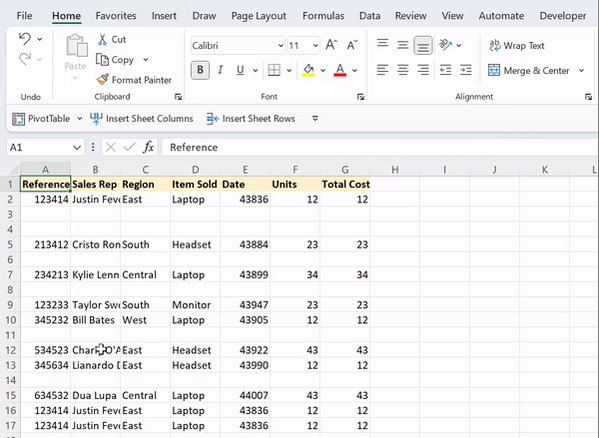
Deleting blank rows is a necessity before analyzing data. Instead of deleting each row one by one, do it all at once with Go To Special. First, select all blank rows by pressing CTRL G > Special > Blanks and hit OK. Then delete them all by pressing CTRL -.
Deleting blank rows is a necessity before analyzing data. Instead of deleting each row one by one, do it all at once with Go To Special. First, select all blank rows by pressing CTRL G > Special > Blanks and hit OK. Then delete them all by pressing CTRL -.
3. Split Tool
When working with large data sets, Excel's default view can be pretty limiting. Luckily, the Split tool can help by allowing you to be 4 places at once so that you can easily compare and edit data. Just select where you want to split the sheet and press ALT W S.
When working with large data sets, Excel's default view can be pretty limiting. Luckily, the Split tool can help by allowing you to be 4 places at once so that you can easily compare and edit data. Just select where you want to split the sheet and press ALT W S.

4. Analyze Data
Create powerful dashboards summarizing and visualizing data without manually creating any chart or pivot table using Excel’s analyze data tool. Select Analyze Data on the Home tab and type how you want to summarize the data. Now insert the visual into your sheet!
Create powerful dashboards summarizing and visualizing data without manually creating any chart or pivot table using Excel’s analyze data tool. Select Analyze Data on the Home tab and type how you want to summarize the data. Now insert the visual into your sheet!
5. AutoFormat
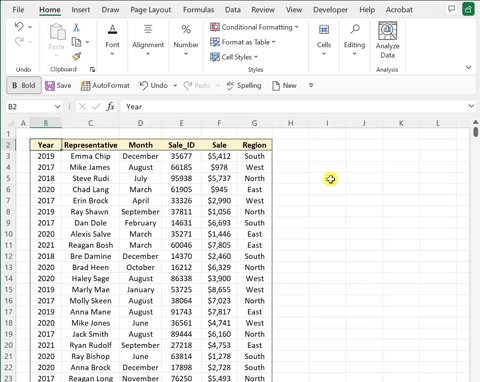
If you spend too much time formatting your data… save your time and use AutoFormat instead. AutoFormat formats data automatically with the click of a button! Just press ALT O A, select whatever format you like best, and hit OK.
If you spend too much time formatting your data… save your time and use AutoFormat instead. AutoFormat formats data automatically with the click of a button! Just press ALT O A, select whatever format you like best, and hit OK.
Loading suggestions...