

10 things all Excel users need to know:
1. Slicers
Being able to quickly drill down into data is critical when analyzing. Instead of applying filters manually, add slicers to the data by navigating to the Insert tab > Slicers > select what you want to filter the data by and hit OK. Now just click any button to filter!
Being able to quickly drill down into data is critical when analyzing. Instead of applying filters manually, add slicers to the data by navigating to the Insert tab > Slicers > select what you want to filter the data by and hit OK. Now just click any button to filter!

2. Power Query
Importing data into Excel never is as easy as it seems. Luckily, Power Query is here to fix that. Power Query imports data from various sources into Excel. So instead of copying data from the web, go to Data > From Web > enter URL > select the table and hit load.
Importing data into Excel never is as easy as it seems. Luckily, Power Query is here to fix that. Power Query imports data from various sources into Excel. So instead of copying data from the web, go to Data > From Web > enter URL > select the table and hit load.

3. Data types
Say goodbye to google searching and hello to data types. Data types pull in real-time data directly into your workbook. To create data types, select the data > Data tab > Select the data category. Now, you can select the data attributes you want to pull into Excel.
Say goodbye to google searching and hello to data types. Data types pull in real-time data directly into your workbook. To create data types, select the data > Data tab > Select the data category. Now, you can select the data attributes you want to pull into Excel.
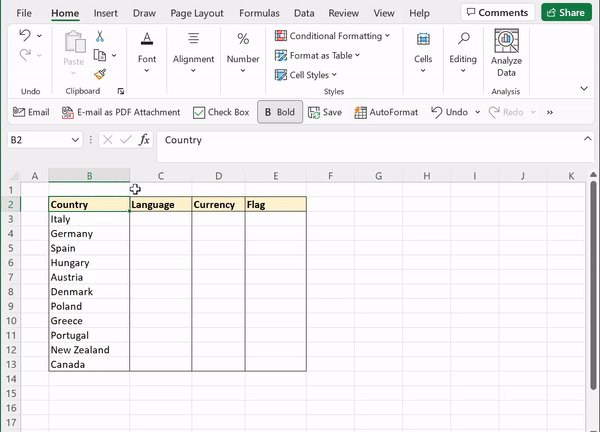
4. Named Ranges
Naming data will not only make your life easier when writing formulas but also make your formulas easier to understand. To name data, select the data > press CTRL SHIFT F3 > check where the headers are and press OK. Now you can reference the data by its name!
Naming data will not only make your life easier when writing formulas but also make your formulas easier to understand. To name data, select the data > press CTRL SHIFT F3 > check where the headers are and press OK. Now you can reference the data by its name!
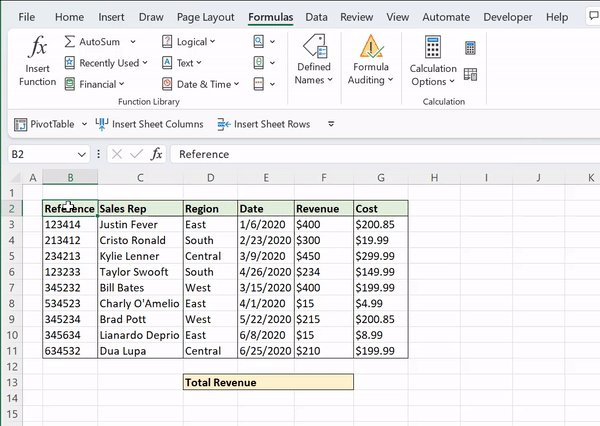
5. Custom Lists
If you enter recurring lists repeatedly, this one's for you. You can create a custom list that Excel will recognize and autofill for you. Go to File > Options > Advanced > Edit Custom Lists > Import List > OK. Now, enter any value and fill with the fill handle.
If you enter recurring lists repeatedly, this one's for you. You can create a custom list that Excel will recognize and autofill for you. Go to File > Options > Advanced > Edit Custom Lists > Import List > OK. Now, enter any value and fill with the fill handle.
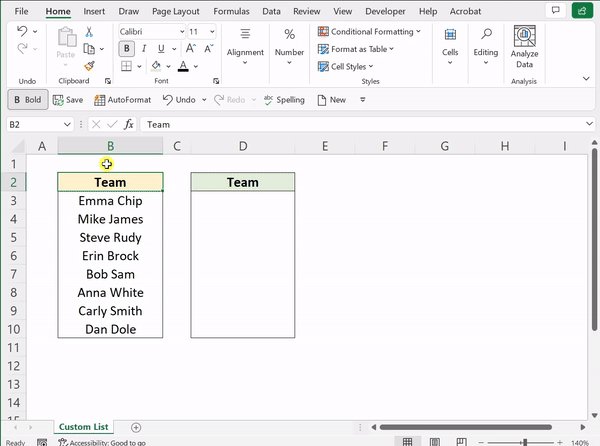
6. Custom Formats
The visualizing data hack you didn't know you needed: custom formatting. Applying a custom format to numbers is a unique yet effective way to visualize data. Open Format Cells box > Number Tab > Custom > enter ‘[Color 10]0.00%🙂;[Color 3]-0.00%☹️’’ as type.
The visualizing data hack you didn't know you needed: custom formatting. Applying a custom format to numbers is a unique yet effective way to visualize data. Open Format Cells box > Number Tab > Custom > enter ‘[Color 10]0.00%🙂;[Color 3]-0.00%☹️’’ as type.
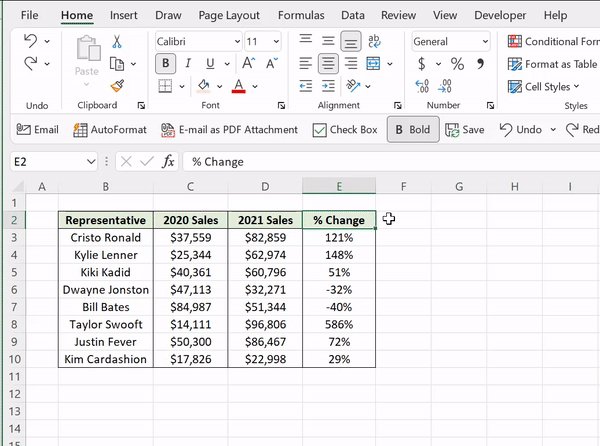
7. Sparklines
Stay on top of (Excel) trends with sparklines. A sparkline is a mini line chart that visually represents data trends. To insert them, press ALT N SL > select the data range you want to visualize and hit okay. Lastly, fill the sparklines down using the fill handle.
Stay on top of (Excel) trends with sparklines. A sparkline is a mini line chart that visually represents data trends. To insert them, press ALT N SL > select the data range you want to visualize and hit okay. Lastly, fill the sparklines down using the fill handle.

8. Flash Fill
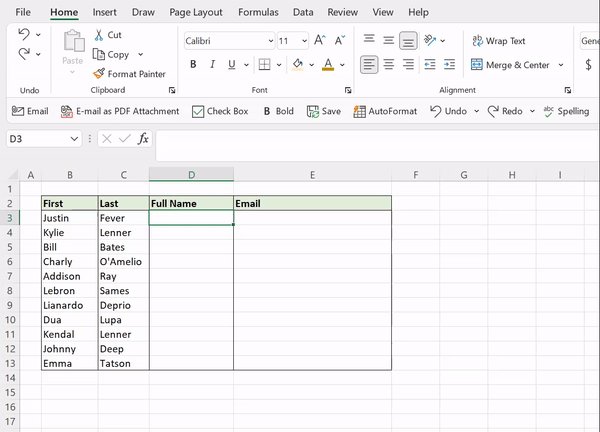
Instead of writing complex text functions and using tools to manipulate data, use flash fill (no formulas needed). You can just type how you want your data to appear and activate flash fill by pressing CTRL E to automatically fill the pattern down the column.
Instead of writing complex text functions and using tools to manipulate data, use flash fill (no formulas needed). You can just type how you want your data to appear and activate flash fill by pressing CTRL E to automatically fill the pattern down the column.
9. Analyze Data
Analyzing large datasets can be a overwhelming task. If you aren't sure where to start, let Excel do the work for you! Just select Analyze Data under the Home tab and simply type how you want to summarize your data. Now just insert the visual into your sheet!
Analyzing large datasets can be a overwhelming task. If you aren't sure where to start, let Excel do the work for you! Just select Analyze Data under the Home tab and simply type how you want to summarize your data. Now just insert the visual into your sheet!

10. Tables
The Excel Underdog: Tables. Tables clean up formatting, autofill formulas, and more, but most importantly: they create a dynamic range. So, any chart, table, or formula referencing the table will auto-update if new data is added. To create a Table, just press CTRL T.
The Excel Underdog: Tables. Tables clean up formatting, autofill formulas, and more, but most importantly: they create a dynamic range. So, any chart, table, or formula referencing the table will auto-update if new data is added. To create a Table, just press CTRL T.
If you want to learn all of Excel’s productivity hacks like this and turn hours of work into seconds, make sure to join the waitlist for my course! Only a few days left to join!!!!!!! 👇🏼
education.morningbrew.com
education.morningbrew.com
Loading suggestions...