

Top 10 Excel formatting shortcuts:
1. ALT H O I
Have you ever opened a workbook and not been able to see the data? Instead of manually adjusting the column widths in the header, try ALT H O I. ALT H O I automatically adjusts the selected cells’ column widths to equal the size of their contents.
Have you ever opened a workbook and not been able to see the data? Instead of manually adjusting the column widths in the header, try ALT H O I. ALT H O I automatically adjusts the selected cells’ column widths to equal the size of their contents.

2. ALT H O A
Now that we know how to automatically adjust our cells' column widths, let's learn how to adjust their row heights! ALT H O A automatically adjusts the selected cells’ row heights to equal the size of their contents.
Now that we know how to automatically adjust our cells' column widths, let's learn how to adjust their row heights! ALT H O A automatically adjusts the selected cells’ row heights to equal the size of their contents.

3. CTRL 9
Sometimes we need to hide rows that contain sensitive data so that they don't show in the worksheet. CTRL 9 automatically hides the active row. If multiple rows are selected, CTRL 9 will automatically hide them all.
Sometimes we need to hide rows that contain sensitive data so that they don't show in the worksheet. CTRL 9 automatically hides the active row. If multiple rows are selected, CTRL 9 will automatically hide them all.
4. CTRL 0
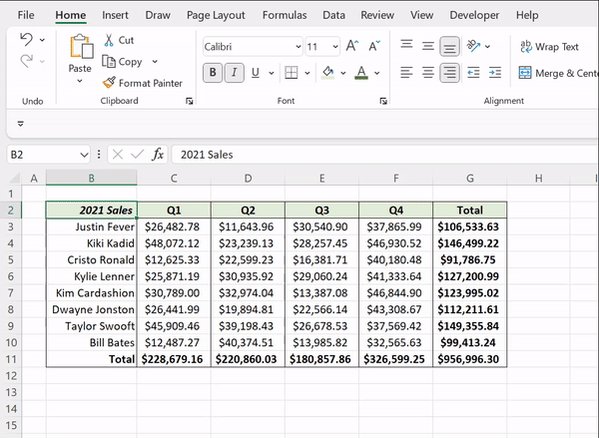
Now that we’ve learned how to hide our rows without using our mouse it’s time to learn how to hide columns. CTRL 0 automatically hides the active column. If multiple columns are selected, CTRL 0 will automatically hide them all.
Now that we’ve learned how to hide our rows without using our mouse it’s time to learn how to hide columns. CTRL 0 automatically hides the active column. If multiple columns are selected, CTRL 0 will automatically hide them all.
5. CTRL SHIFT +
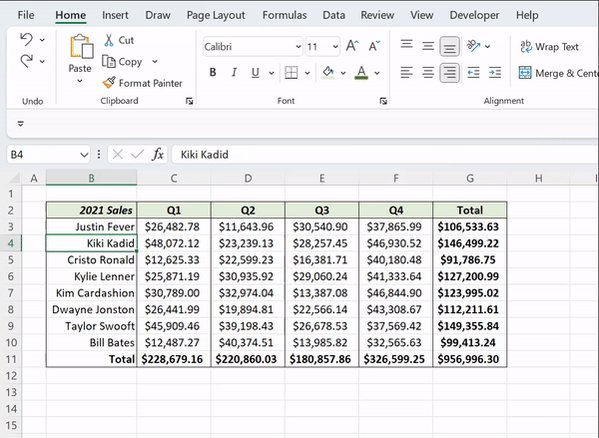
It's time to retire the context menu for inserting cells. CTRL SHIFT + opens the insert dialog box, which is used to insert new cells and choose how to shift existing cells. If an entire row/column is selected, CTRL SHIFT + automatically inserts a new row/column.
It's time to retire the context menu for inserting cells. CTRL SHIFT + opens the insert dialog box, which is used to insert new cells and choose how to shift existing cells. If an entire row/column is selected, CTRL SHIFT + automatically inserts a new row/column.
6. CTRL -
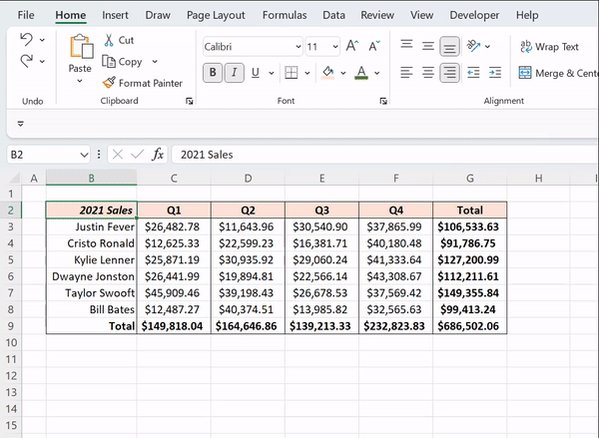
Now that we know how to quickly insert new cells let's learn how to delete them. CTRL - opens the delete dialog, which is used to delete cells and choose how to shift existing cells. If an entire row/column is selected, CTRL - automatically deletes the new row/column.
Now that we know how to quickly insert new cells let's learn how to delete them. CTRL - opens the delete dialog, which is used to delete cells and choose how to shift existing cells. If an entire row/column is selected, CTRL - automatically deletes the new row/column.
7. CTRL SHIFT &
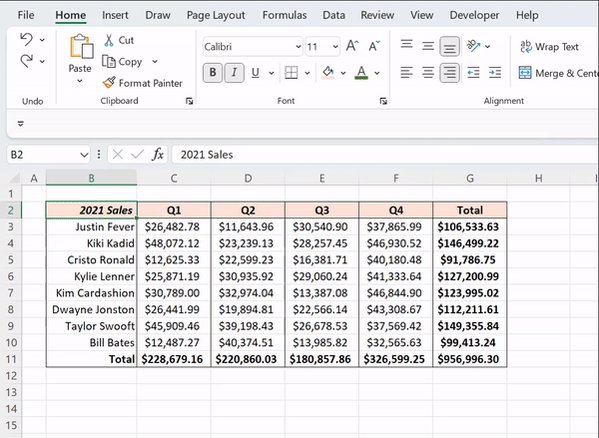
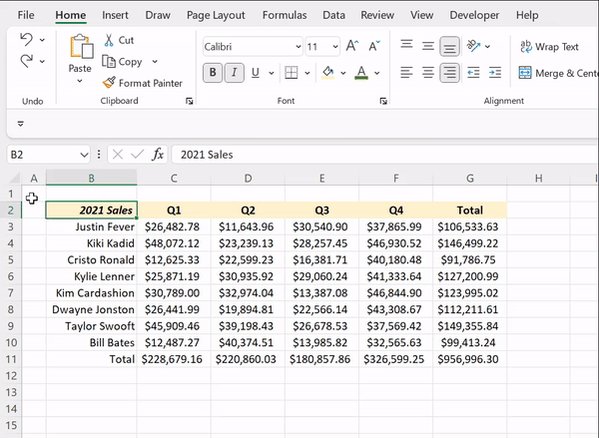
Instead of clicking through the ribbon every time you want to add borders to a selected cell or table, try the CTRL SHIFT & shortcut instead! The CTRL SHIFT & shortcut automatically adds outside borders to the selection.
Instead of clicking through the ribbon every time you want to add borders to a selected cell or table, try the CTRL SHIFT & shortcut instead! The CTRL SHIFT & shortcut automatically adds outside borders to the selection.
8. CTRL SHIFT _
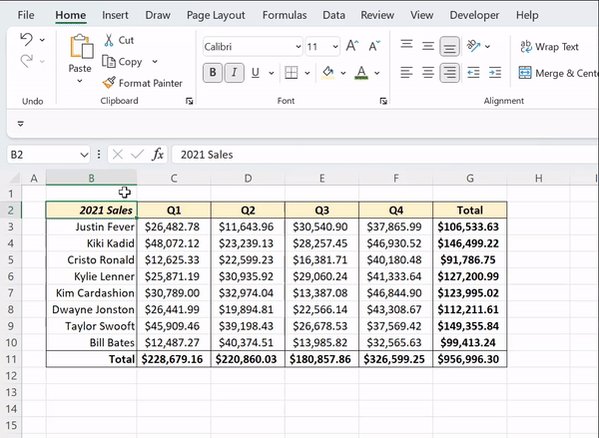
Now that we know how to add borders without using our mouse, let's learn how to quickly remove them. CTRL SHIFT _ automatically removes all borders from the selected cells.
Now that we know how to add borders without using our mouse, let's learn how to quickly remove them. CTRL SHIFT _ automatically removes all borders from the selected cells.
9. SHIFT F11
Let's say we need to insert a new worksheet into our workbook, but we lost our mouse. Not a problem! Just hit SHIFT F11. SHIFT F11 quickly inserts a new worksheet into the active workbook.
Let's say we need to insert a new worksheet into our workbook, but we lost our mouse. Not a problem! Just hit SHIFT F11. SHIFT F11 quickly inserts a new worksheet into the active workbook.

10. ALT W VG
Team gridlines or no gridlines? If your team no gridlines, this one is for you. ALT W VG removes all gridlines from the active worksheet. If you are team gridlines… don't worry; you can hit ALT W VG again to add them back.
Team gridlines or no gridlines? If your team no gridlines, this one is for you. ALT W VG removes all gridlines from the active worksheet. If you are team gridlines… don't worry; you can hit ALT W VG again to add them back.

Which shortcuts did I miss?!
If love #Excel shortcuts, make sure to check out my shortcut eBook, shortcut mug, shortcut mousepad, and much more below!
shop.morningbrew.com
If love #Excel shortcuts, make sure to check out my shortcut eBook, shortcut mug, shortcut mousepad, and much more below!
shop.morningbrew.com

جاري تحميل الاقتراحات...