

Basic Linux commands for text manipulation 🐧↓
Hello Linux folks, Today I'll be doing a quick, easy-to-follow thread on basic Linux text manipulation commands.
[1] Echo🐧
The echo command is used to display a line of text to the standard output(stdout).
The echo command is used to display a line of text to the standard output(stdout).
![[1] Echo🐧
The echo command is used to display a line of text to the standard output(stdout). https...](https://pbs.twimg.com/media/FeiSbyqWIAQ3bqN.png)
[2] Printf🐧
The printf command is used to format and print data to the standard output.
The printf command is used to format and print data to the standard output.
![[2] Printf🐧
The printf command is used to format and print data to the standard output. https://t.c...](https://pbs.twimg.com/media/FeiTgbdX0AE7dry.png)
[3] Cat
Cat is used to concatenate files and print their contents to standard output. In other words, it simply displays the contents of a file.
Cat is used to concatenate files and print their contents to standard output. In other words, it simply displays the contents of a file.
![[3] Cat
Cat is used to concatenate files and print their contents to standard output. In other word...](https://pbs.twimg.com/media/FeiVbJEWAAQbtFp.png)
Did I tell you there is a modern version of cat (batcat) with syntax highlighting?🤔

[4] Tac🐧
The tac command, like the cat command, concatenates and prints file contents in reverse order. The name suggests that this command is the inverse of the popular cat command.
The tac command, like the cat command, concatenates and prints file contents in reverse order. The name suggests that this command is the inverse of the popular cat command.
![[4] Tac🐧
The tac command, like the cat command, concatenates and prints file contents in reverse or...](https://pbs.twimg.com/media/FeiWnrmXEAcaELH.png)
[5] Paste🐧
The paste command, like the cat command, merges lines in a file into a single large single line.
The paste command, like the cat command, merges lines in a file into a single large single line.
![[5] Paste🐧
The paste command, like the cat command, merges lines in a file into a single large sing...](https://pbs.twimg.com/media/FeiXh8VXwAE6aFi.jpg)
[6] Head🐧
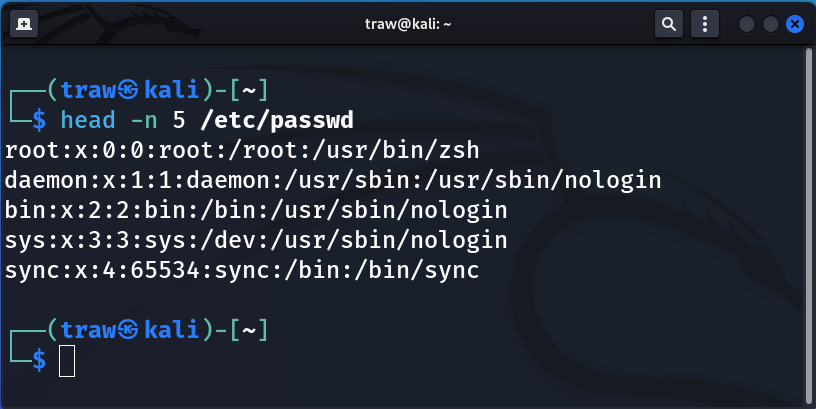
This command shows the first section of a file. Assume we have a lengthy file and you only want to see the first few lines. This is where the head command comes in; the head command, by default, displays the first 10 lines of a file.
This command shows the first section of a file. Assume we have a lengthy file and you only want to see the first few lines. This is where the head command comes in; the head command, by default, displays the first 10 lines of a file.
However, you can also specify the number of lines that the command should display.

As previously stated, you can specify the number of lines to whatever you want; for example, let's say I only want to see the first 5 lines. The -n in the example below represents the number of lines we want to display.
[7] Tail🐧
The tail command, like the head command, displays the last 10 lines of a file by default. However, you can always change it and specify the number of lines to display. I've chosen to show the last 5 lines in this case.
The tail command, like the head command, displays the last 10 lines of a file by default. However, you can always change it and specify the number of lines to display. I've chosen to show the last 5 lines in this case.
![[7] Tail🐧
The tail command, like the head command, displays the last 10 lines of a file by default....](https://pbs.twimg.com/media/FeiZ3sCXkAANUM2.png)
[8] Rev🐧
This command reverses lines characterwise.
This command reverses lines characterwise.
![[8] Rev🐧
This command reverses lines characterwise. https://t.co/lDfqxZSajj](https://pbs.twimg.com/media/FeiaF_LX0AIvOOr.png)
[9] Sort🐧
The sort command is very useful for sorting files, and text lines.
The sort command is very useful for sorting files, and text lines.
![[9] Sort🐧
The sort command is very useful for sorting files, and text lines. https://t.co/yMp6rrgOB...](https://pbs.twimg.com/media/FeiawAhX0AAR-CP.jpg)
Sorting by string numerical value is also possible with the sort command by using the -n option.
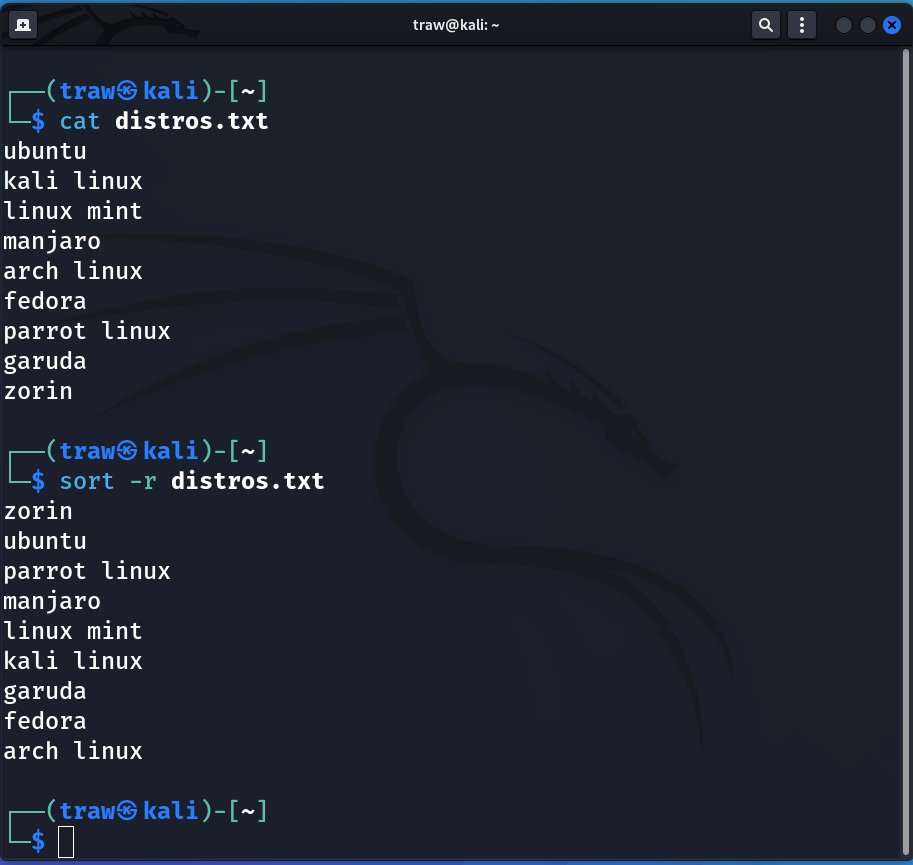
The sort command also has the capability of sorting in reverse order by using its -r option.
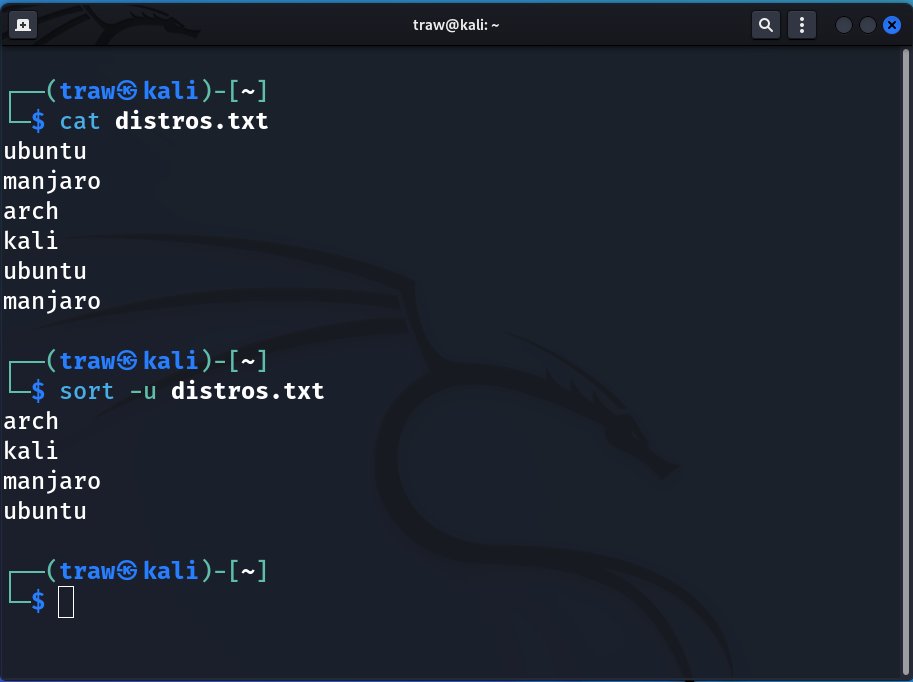
Finally, you can use the sort command to remove repeated lines, resulting in only unique lines. This is accomplished by using the sort command's -u option.
[10] Uniq (Unique)🐧
Another useful tool for text manipulation is the uniq (unique) command. It is used to remove or omit duplicates from a file, hence the name unique.
Another useful tool for text manipulation is the uniq (unique) command. It is used to remove or omit duplicates from a file, hence the name unique.
Uniq only removes adjacent duplicates, so we must sort our file before running it through uniq; otherwise, it will fail.
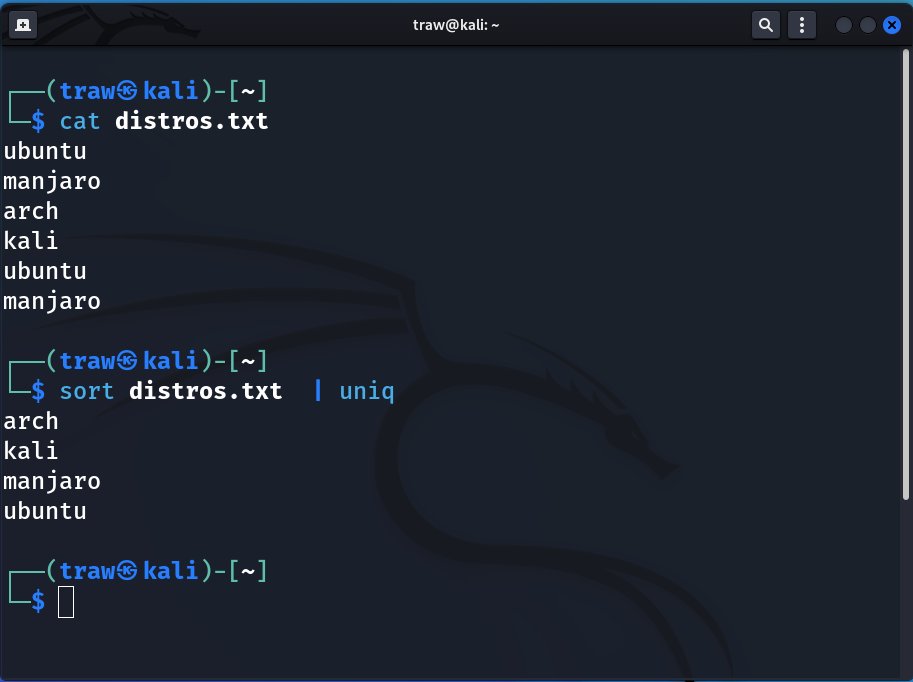
The preceding example is simply the equivalent of the 'sort -u' command; you can choose which one you prefer. In my case, I use both depending on which I thought about first.
[11] wc🐧
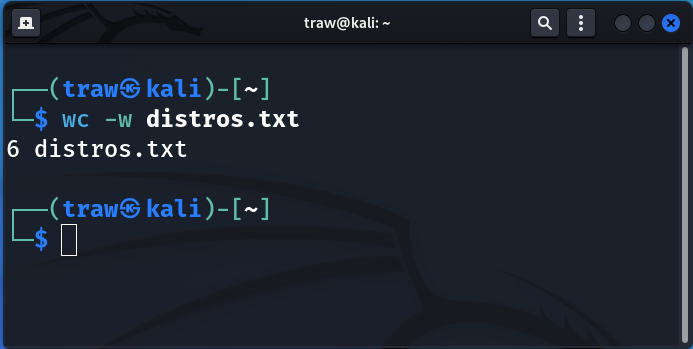
Word Count (wc) prints the number of newlines, words, and bytes in each file or supplied text. It displays the number of lines, words, and bytes respectively.
Word Count (wc) prints the number of newlines, words, and bytes in each file or supplied text. It displays the number of lines, words, and bytes respectively.
![[11] wc🐧
Word Count (wc) prints the number of newlines, words, and bytes in each file or supplied t...](https://pbs.twimg.com/media/Feif7yYWAAATLaL.png)
You can also specify what you want to display explicitly by using the l-, -w, or -c options, which will display the number of lines, words, or characters (bytes) respectively.
Let's try displaying only the number of words. Few free to experiment with other options.
Let's try displaying only the number of words. Few free to experiment with other options.
[12] nl🐧
The nl (number lines) command is another option for determining the number of lines in a file. It displays the contents of a file as well as line numbers. This command is the equivalent of 'cat -n' command.
The nl (number lines) command is another option for determining the number of lines in a file. It displays the contents of a file as well as line numbers. This command is the equivalent of 'cat -n' command.
![[12] nl🐧
The nl (number lines) command is another option for determining the number of lines in a f...](https://pbs.twimg.com/media/Feij4_3XwAEVa9H.png)
![[12] nl🐧
The nl (number lines) command is another option for determining the number of lines in a f...](https://pbs.twimg.com/media/FeiigEvXwAIpAUi.png)
[13] grep🐧
The grep command is one of the most common text processing commands you will use. It allows you to search files for characters that match a certain pattern.
The grep command is one of the most common text processing commands you will use. It allows you to search files for characters that match a certain pattern.
![[13] grep🐧
The grep command is one of the most common text processing commands you will use. It all...](https://pbs.twimg.com/media/FeiivWEWAAItZC3.png)
Grep has many useful switches that I won't go over here, but if you want to learn more about this useful utility, check out the grep man pages.
[14] diff🐧
The diff command simply compares two text sources/text files and outputs their differences. It compares the files line by line to find the differences.
The diff command simply compares two text sources/text files and outputs their differences. It compares the files line by line to find the differences.
![[14] diff🐧
The diff command simply compares two text sources/text files and outputs their differenc...](https://pbs.twimg.com/media/FeikddmWQAEWMoG.png)
[15] vimdiff
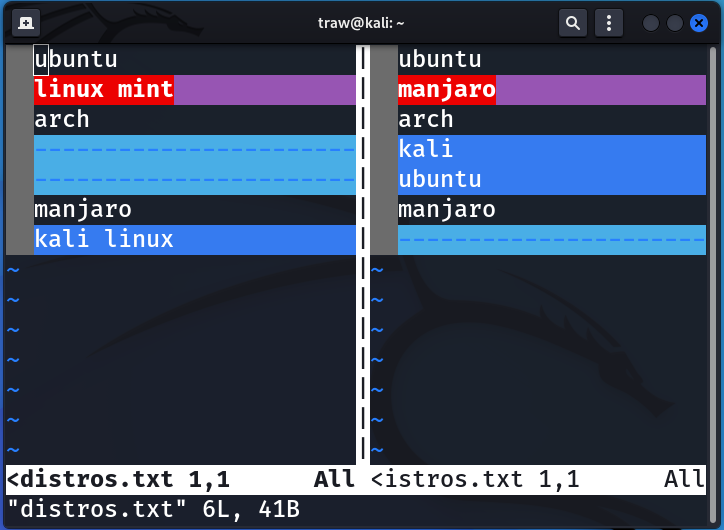
Another excellent command for comparing files is vimdiff. Vim is launched on two to eight files using vimdiff. Each file has its own window.
Another excellent command for comparing files is vimdiff. Vim is launched on two to eight files using vimdiff. Each file has its own window.
The differences between the files are highlighted. This is an easy way to check for changes and move changes from one version of the same file to another.
$ vimdiff file1 file2
$ vimdiff file1 file2
[16] Cut🐧
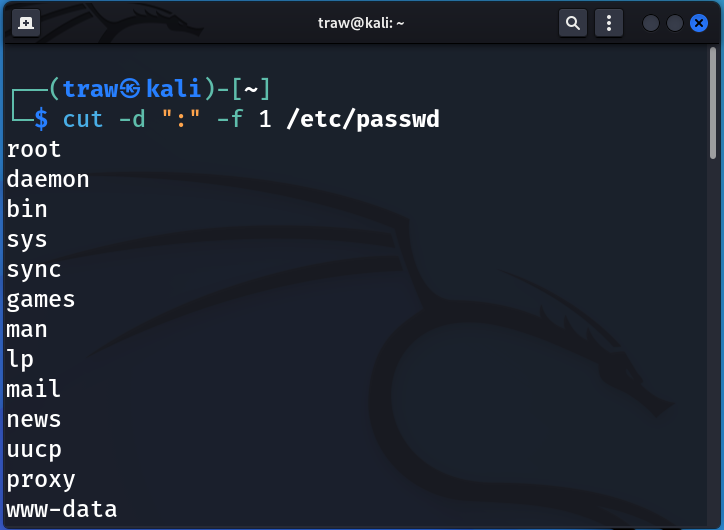
The cut command can be used to remove/extract bytes, characters, and fields from files. Various parameters are used to specify what part or parts of the file are to be removed or displayed.
The cut command can be used to remove/extract bytes, characters, and fields from files. Various parameters are used to specify what part or parts of the file are to be removed or displayed.
Here is a quick example, let's say we want to display all the user names in the /etc/passwd file.
And that's a wrap!
If you enjoyed this thread:
1. Follow me (@xtremepentest) & give this a RT!
2. Join 1000+ subscribers inside of my weekly newsletter "Linux Weekly Catch Ups" and never miss any Linux, security, and networking content.
getrevue.co
If you enjoyed this thread:
1. Follow me (@xtremepentest) & give this a RT!
2. Join 1000+ subscribers inside of my weekly newsletter "Linux Weekly Catch Ups" and never miss any Linux, security, and networking content.
getrevue.co
3. Join my discord server and hang out with 1000+ other members.
discord.com
discord.com
Loading suggestions...