

7 Excel Data Visualization Tricks to learn in 5 minutes or less. 📊
1. Sparklines
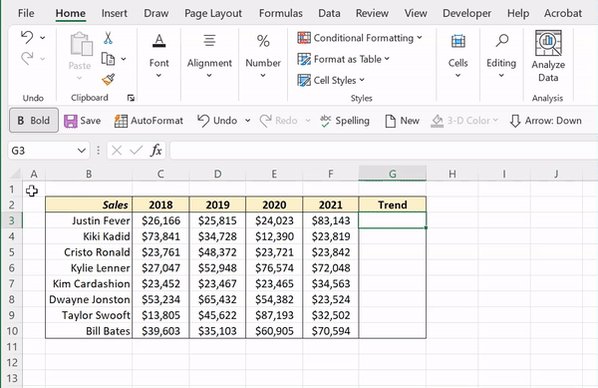
A sparkline is a mini in-cell line chart that visually represents data trends.
To add a sparkline, go to the Insert tab > Line > insert the range of the cells you want to visualize and hit okay. Lastly, fill the sparklines down the column using the fill handle.
A sparkline is a mini in-cell line chart that visually represents data trends.
To add a sparkline, go to the Insert tab > Line > insert the range of the cells you want to visualize and hit okay. Lastly, fill the sparklines down the column using the fill handle.
2. Color Scales
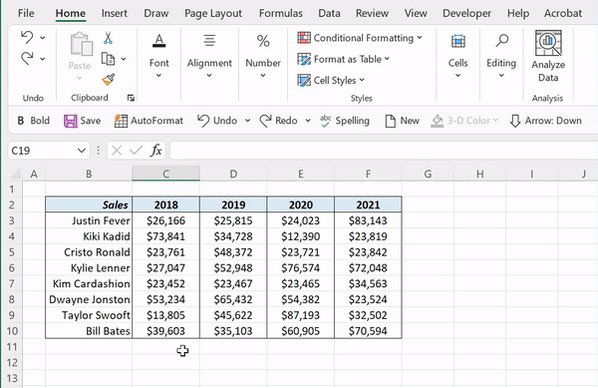
Color Scales highlight cells in a range to indicate how large or small the value is compared to other values.
To add color scales, select the cells you want to visualize > Home tab > Conditional Formatting > Color Scales > Select any style.
Color Scales highlight cells in a range to indicate how large or small the value is compared to other values.
To add color scales, select the cells you want to visualize > Home tab > Conditional Formatting > Color Scales > Select any style.
3. Geographical Heat Map
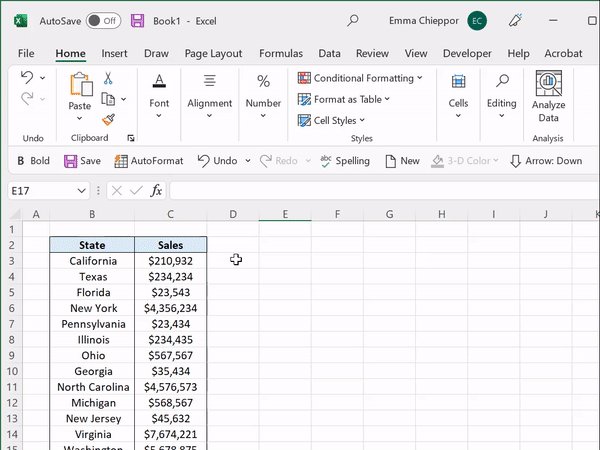
A geographical heat map visualizes data across geographical regions using color shading to display how values differ in proportion based on the region.
To insert a geographical heat map, select the data > Insert > Maps > Filled Map.
A geographical heat map visualizes data across geographical regions using color shading to display how values differ in proportion based on the region.
To insert a geographical heat map, select the data > Insert > Maps > Filled Map.
4. REPT Chart
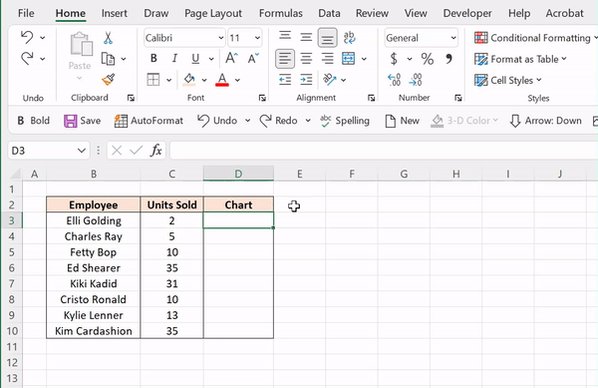
REPT is typically used to repeat text but can also create an in-cell bar chart that visualizes the size of a number.
To create a REPT chart, enter “|” as the text argument, the number as the number_times argument, fill down cells, and change the font to Stencil.
REPT is typically used to repeat text but can also create an in-cell bar chart that visualizes the size of a number.
To create a REPT chart, enter “|” as the text argument, the number as the number_times argument, fill down cells, and change the font to Stencil.
5. Icon Sets
Icon Sets are a fun visual tool that represent the size of value within a range using icons such as arrows, flags, shapes, and more.
Select the range you want to add icons to > go to the Home tab > Conditional Formatting > Icons Sets > select any Icon Set.
Icon Sets are a fun visual tool that represent the size of value within a range using icons such as arrows, flags, shapes, and more.
Select the range you want to add icons to > go to the Home tab > Conditional Formatting > Icons Sets > select any Icon Set.
6. Data Bars:
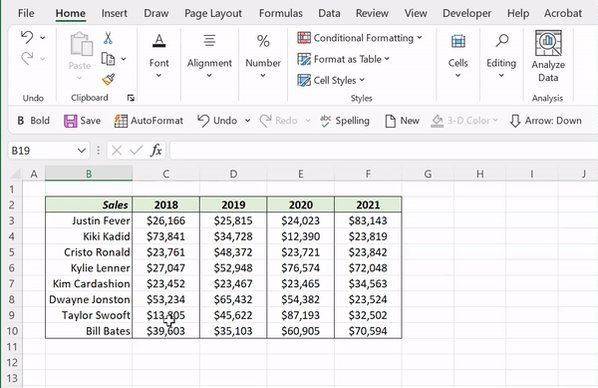
Visualizing data with data bars is a simple yet effective way to understand relationships between data. The larger the number, the larger the Bar.
To add data bars, select the data > Home tab > Conditional Formatting > Data Bars > Select any style.
Visualizing data with data bars is a simple yet effective way to understand relationships between data. The larger the number, the larger the Bar.
To add data bars, select the data > Home tab > Conditional Formatting > Data Bars > Select any style.
7. Image Bar Chart
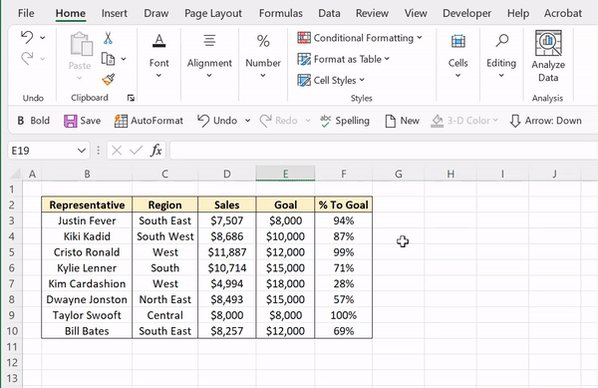
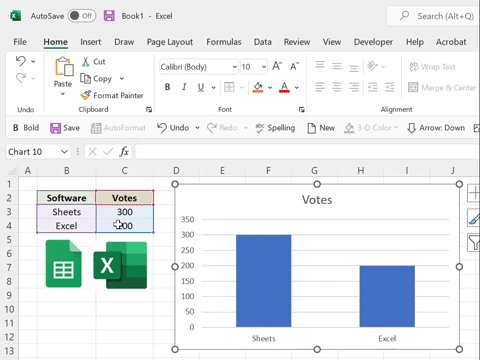
Spruce up any bar chart by replacing the bars with images. To do this, select the image you want to insert and cut it by hitting CTRL X. Then, select the bar you want to replace and paste the image by hitting CTRL V. The image size will automatically update.
Spruce up any bar chart by replacing the bars with images. To do this, select the image you want to insert and cut it by hitting CTRL X. Then, select the bar you want to replace and paste the image by hitting CTRL V. The image size will automatically update.
That’s all for today. If you enjoyed these quick Excel tips, make sure to check out @exceldictionary on other socials for even more.
IG -> instagram.com
TikTok -> @exceldictionary" target="_blank" rel="noopener" onclick="event.stopPropagation()">tiktok.com
IG -> instagram.com
TikTok -> @exceldictionary" target="_blank" rel="noopener" onclick="event.stopPropagation()">tiktok.com
Loading suggestions...