

Linux absolute path and relative path names explained. A small and easy to follow thread 🐧↓
🐧 Absolute Path
An absolute path name is one that starts at the root directory and works its way up the tree, branch by branch, until it reaches the desired directory or file.
An absolute path name is one that starts at the root directory and works its way up the tree, branch by branch, until it reaches the desired directory or file.
Assume there is a directory on your system where you save personal files, install programs, and save documents.
The path name for the directory is /home/linuxopsys.
The path name for the directory is /home/linuxopsys.
This means that from the root directory (represented by the leading forward slash in the path name), there is a directory called home, which contains a directory called linuxopsys.

We can see from the preceding example that we have changed the current working directory to /home/linuxopsys, which is full of files.
Have you noticed how the shell prompt has as changed? It is usually set up to automatically display the name of the working directory as a convenience.
🐧 Relative Path
A relative path name begins in the working directory and leads to the destination, whereas an absolute path name begins in the root directory (/) and leads to the destination.
A relative path name begins in the working directory and leads to the destination, whereas an absolute path name begins in the root directory (/) and leads to the destination.
It accomplishes this by employing a couple of special notations to represent relative positions in the file system tree. These are the special notations:
. (dot) and .. (dot dot).
. (dot) and .. (dot dot).
The . notation refers to the current working directory, and the .. notation refers to the parent directory of the working directory. This is how it works: Let's change the working directory back to /home/linuxopsys.

Assume we wanted to change the working directory to the parent directory of /home/linuxopsys, which is /home/. We could do it in two ways: first, with an absolute path name, as shown below:
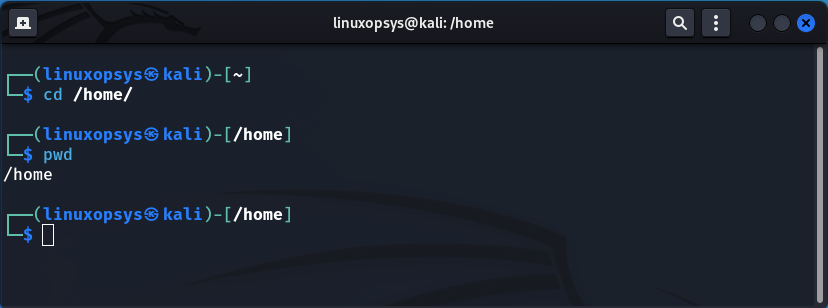
or we can simply do it using a relative path name as shown below:
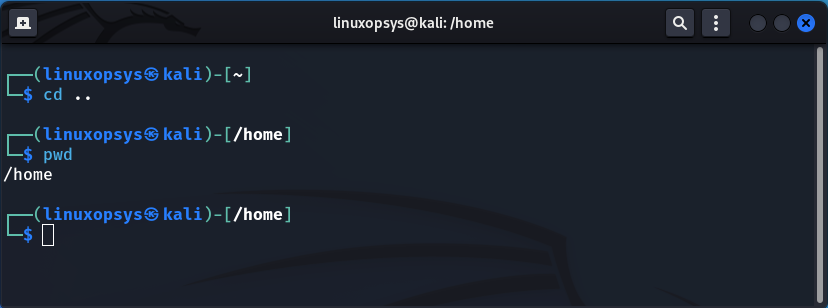
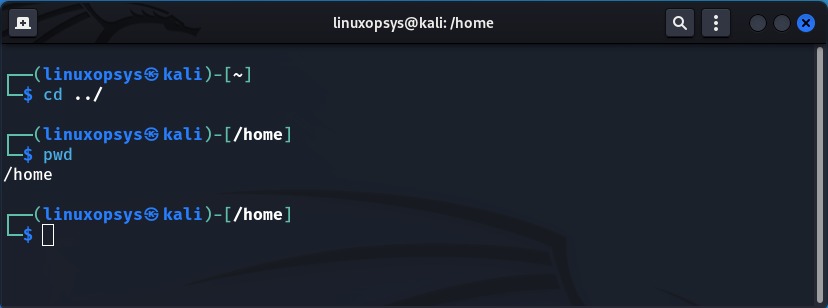
It's worth noting that if we don't specify a path name to something when using the cd command, the current user's home directory is assumed.
🐧 Some handy cd command shortcuts
As an added bonus, here are some useful shortcuts for quickly changing the current working directory with the cd command.
• cd or cd - changes the working directory to your home directory.
As an added bonus, here are some useful shortcuts for quickly changing the current working directory with the cd command.
• cd or cd - changes the working directory to your home directory.
• cd - - changes the working directory to the previous working directory.
• cd ~username - changes the working directory to the home directory of the specified username. For example, typing
$ cd ~linuxopsys
will change the directory to the home directory of user “linuxopsys.”
$ cd ~linuxopsys
will change the directory to the home directory of user “linuxopsys.”
That's all for this thread! Thank you for getting this far. I hope you find this thread useful.
If you found this thread valuable:
1. Toss us a follow for more daily threads on Linux, sysadmin and devops → @linuxopsys
2. Like and RT the first tweet so other Linux folks can find it too.
1. Toss us a follow for more daily threads on Linux, sysadmin and devops → @linuxopsys
2. Like and RT the first tweet so other Linux folks can find it too.
Loading suggestions...