

10 Mac tips to work smarter (that 99% of users don’t know about) 👇
1. Advanced Spotlight
Command + Spacebar will open Spotlight.
Perhaps you already use Spotlight to quickly search + launch apps
(it’s way faster than mouse navigation).
You can also use Spotlight for:
• Calculation
• Unit conversion
• Retrieving stock quotes (input ticker)
Command + Spacebar will open Spotlight.
Perhaps you already use Spotlight to quickly search + launch apps
(it’s way faster than mouse navigation).
You can also use Spotlight for:
• Calculation
• Unit conversion
• Retrieving stock quotes (input ticker)

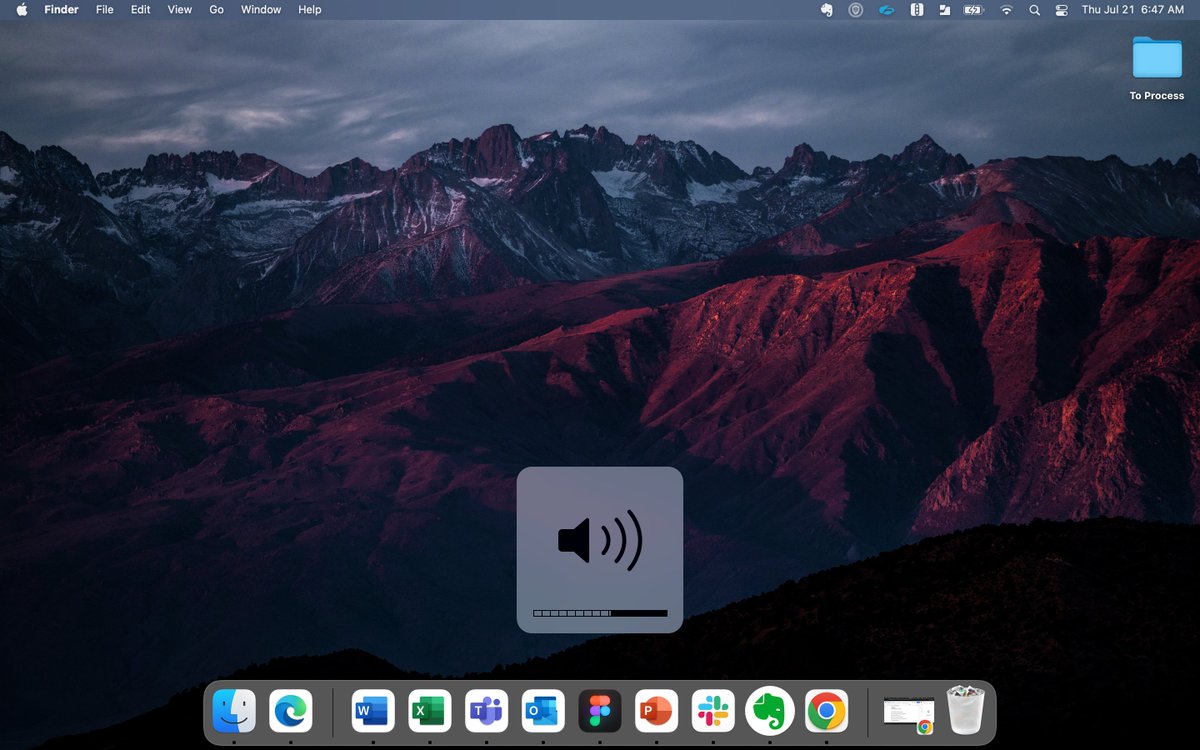
2. Volume & Brightness Micro Adjustments
Press a volume key, and it will adjust one whole notch.
But what if that’s too loud or soft?
Make micro adjustments (0.25 increments):
Shift + Option, then press the volume or brightness control.
Yep—that blew my mind too.
Press a volume key, and it will adjust one whole notch.
But what if that’s too loud or soft?
Make micro adjustments (0.25 increments):
Shift + Option, then press the volume or brightness control.
Yep—that blew my mind too.
3. Split View
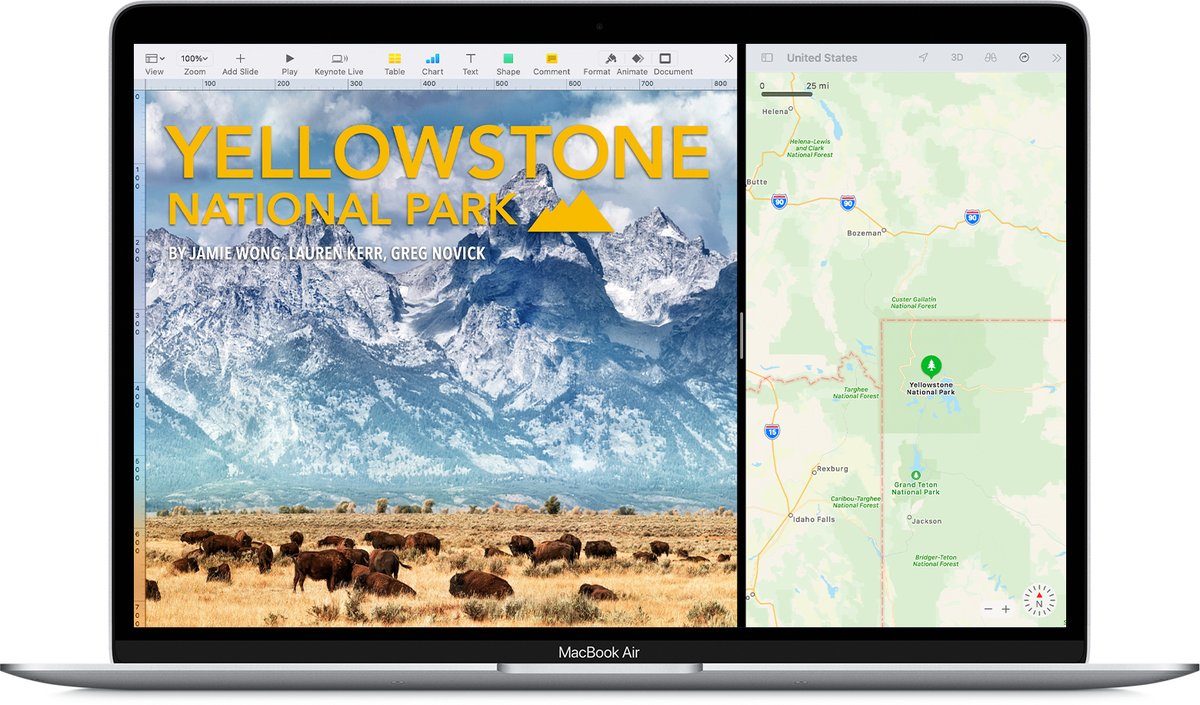
Work in two apps at the same time, side-by-side.
Lock them in place:
• Hover over the full-screen 🟢 button
• Choose the L or R side
• Content will fill that side
• Fill the other side by clicking a window
• Slide the vertical line to adjust the width
Work in two apps at the same time, side-by-side.
Lock them in place:
• Hover over the full-screen 🟢 button
• Choose the L or R side
• Content will fill that side
• Fill the other side by clicking a window
• Slide the vertical line to adjust the width
4. Screen Sharing
Need to troubleshoot a grandparent’s tech issue?
Remotely access + control their screen (built-in Mac feature):
1. Open Spotlight [Command + Space]
2. Search 'Screen Sharing'; open app
3. Type in the Apple ID of the desired screen
4. Owner then grants access
Need to troubleshoot a grandparent’s tech issue?
Remotely access + control their screen (built-in Mac feature):
1. Open Spotlight [Command + Space]
2. Search 'Screen Sharing'; open app
3. Type in the Apple ID of the desired screen
4. Owner then grants access
5. One-Click Do Not Disturb
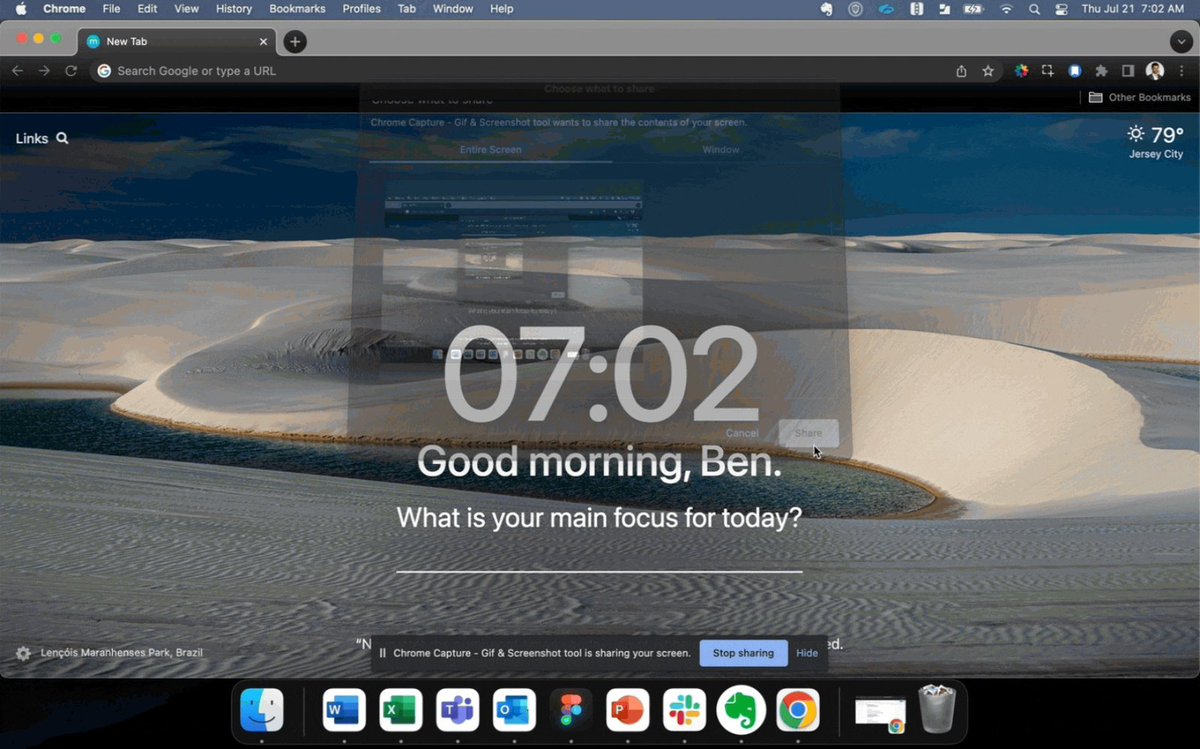
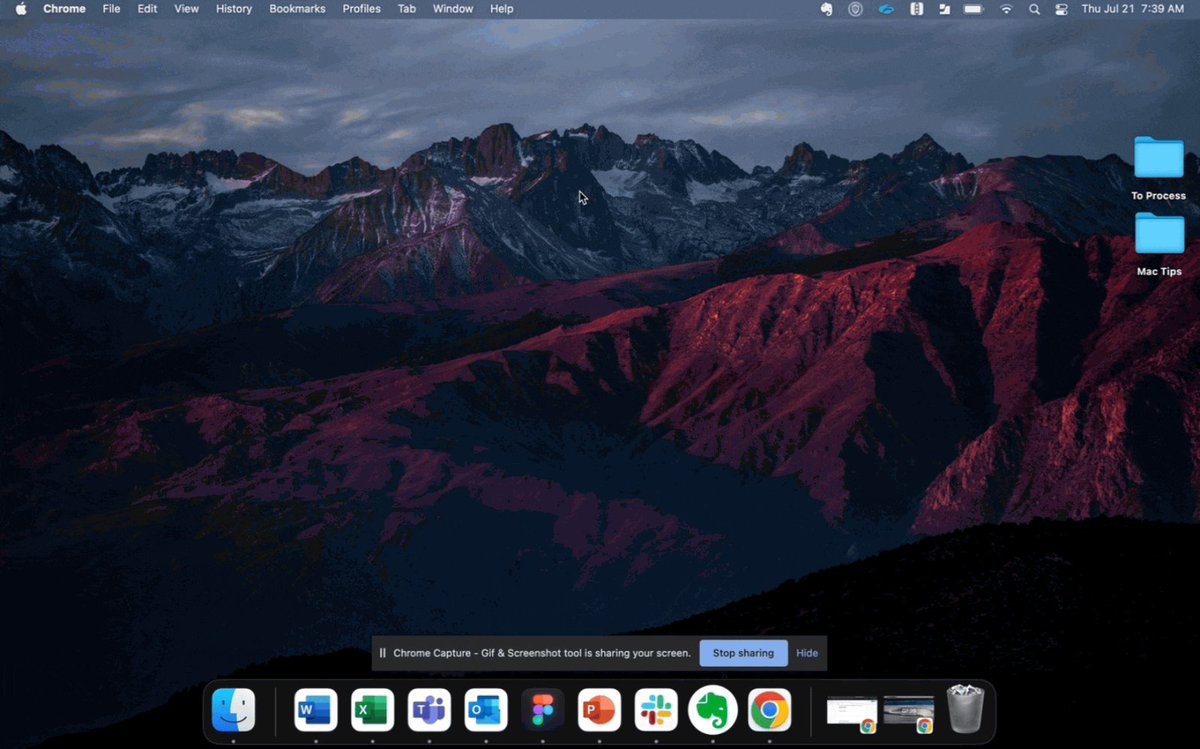
Want to turn off notifications quickly?
Maybe you’re on a virtual call, sharing your screen, and you don’t want others seeing incoming messages.
Option + Click on the Notification Center.
(That’s the upper right corner of your screen.)
Boom.
Want to turn off notifications quickly?
Maybe you’re on a virtual call, sharing your screen, and you don’t want others seeing incoming messages.
Option + Click on the Notification Center.
(That’s the upper right corner of your screen.)
Boom.
6. Quicklook Preview in Finder
Say you’re in Finder and want to preview a file
(perhaps to check to see if it’s the right one.)
Instead of double-clicking the file to open it,
Hit the Spacebar for a popup preview, then Spacebar to close.
Simple, but it'll save you time.
Say you’re in Finder and want to preview a file
(perhaps to check to see if it’s the right one.)
Instead of double-clicking the file to open it,
Hit the Spacebar for a popup preview, then Spacebar to close.
Simple, but it'll save you time.

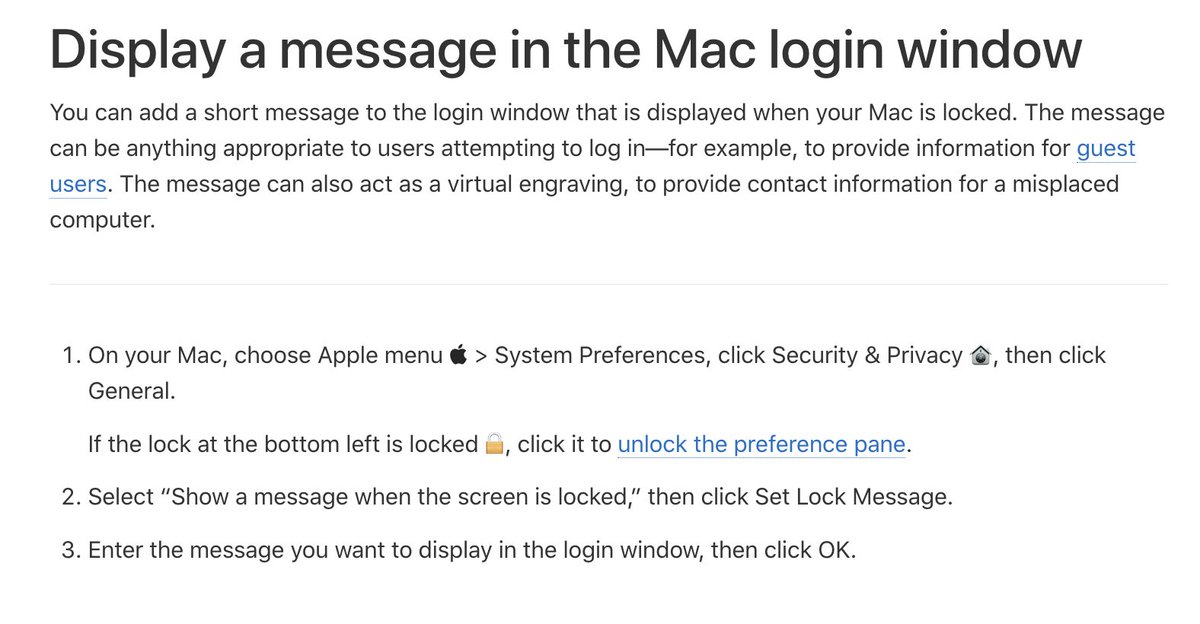
7. Set a Lock Screen Message
Create a “Please return if lost message.”
(Like you might on the front page of a notebook)
Consider including your phone #, email, and address.
Might save you one day.
Here’s how that works:
Create a “Please return if lost message.”
(Like you might on the front page of a notebook)
Consider including your phone #, email, and address.
Might save you one day.
Here’s how that works:
8. Increase Mouse and Keyboard Speed
Remove bottlenecks.
Mouse
>System Preferences
>Trackpad
>Tracking Speed to Fast
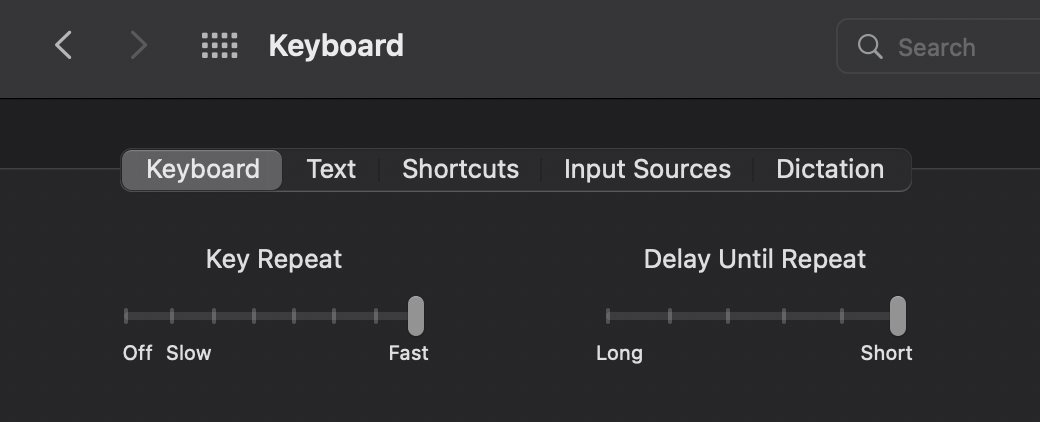
Keyboard
>System Preferences
>Keyboard
>Key Repeat to Fast; Delay Until Repeat to short.
Feel like Bradley Cooper in Limitless yet?
Remove bottlenecks.
Mouse
>System Preferences
>Trackpad
>Tracking Speed to Fast
Keyboard
>System Preferences
>Keyboard
>Key Repeat to Fast; Delay Until Repeat to short.
Feel like Bradley Cooper in Limitless yet?
9. Keyboard Shortcuts
Advanced shortcuts (actually worth learning):
• Command+N: New window/doc
• Command+Q: Close app
• Command+M: Minimize app
• Command+H: Hide current app
• Command+Tab: Navigate between apps
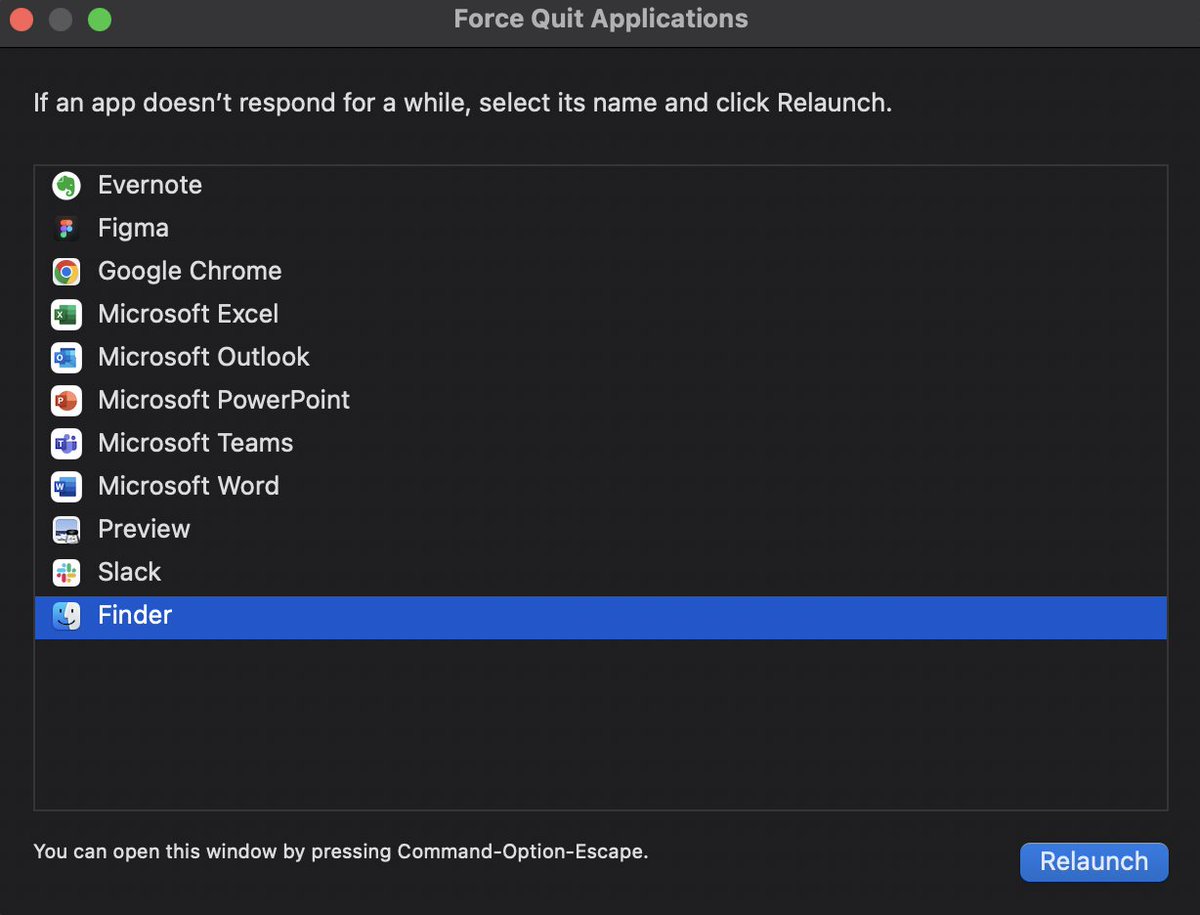
• Command+Option+Escape: Force close an unresponsive app 👇
Advanced shortcuts (actually worth learning):
• Command+N: New window/doc
• Command+Q: Close app
• Command+M: Minimize app
• Command+H: Hide current app
• Command+Tab: Navigate between apps
• Command+Option+Escape: Force close an unresponsive app 👇
10. Picture-in-picture
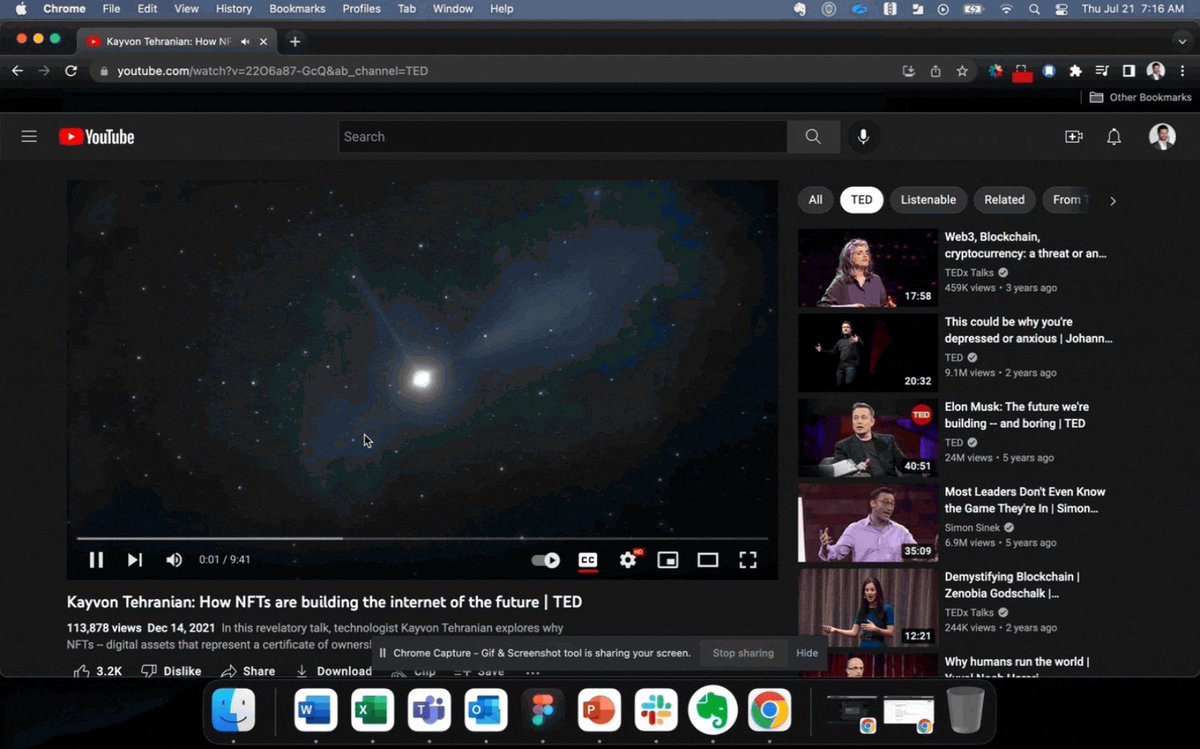
Watch videos in a small, floating window.
Maybe there’s an online class you'd like to keep an eye on...
But you want most of your screen to be something else (like a word doc to take notes).
• Control+Click the video twice
• Select Picture-in-Picture
Watch videos in a small, floating window.
Maybe there’s an online class you'd like to keep an eye on...
But you want most of your screen to be something else (like a word doc to take notes).
• Control+Click the video twice
• Select Picture-in-Picture
I hope these tips delighted you (as they did for me when I learned them).
If you enjoyed this thread, please RT the first tweet and follow me @SystemSunday
This account exists to help you:
• Learn systems + mental models
• Become your best self
All systems go,
Ben
If you enjoyed this thread, please RT the first tweet and follow me @SystemSunday
This account exists to help you:
• Learn systems + mental models
• Become your best self
All systems go,
Ben
p.s. If you like productivity tools, you will love my weekly newsletter (it’s free).
Every Sunday I feature the best tech products for wealth, health, and free time.
Try it here:
getrevue.co
Every Sunday I feature the best tech products for wealth, health, and free time.
Try it here:
getrevue.co
Loading suggestions...