

Here is a breakdown of why you should avoid merging cells at all costs and a better alternative if you still feel strongly about merging cells:
You're unable to sort data if it contains merged cells. Below we have historical sales data with rows without data merged into one cell. Watch what happens when I try to sort the total sales in descending order.
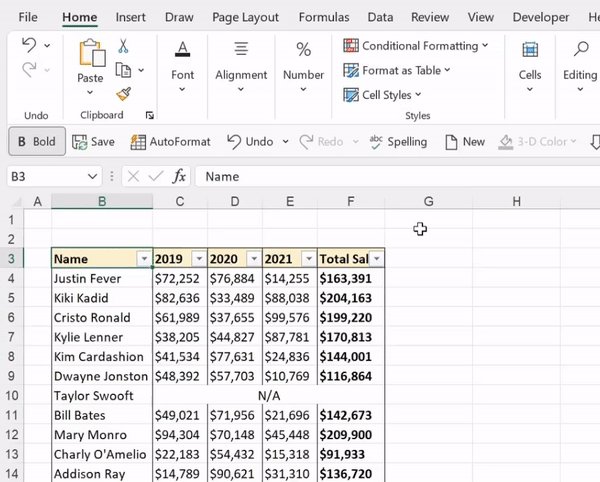
Merged cells can make copy and pasting data difficult. Let’s say we received Taylor’s sales data and wanted to copy and paste it in. Again, it doesn’t work.
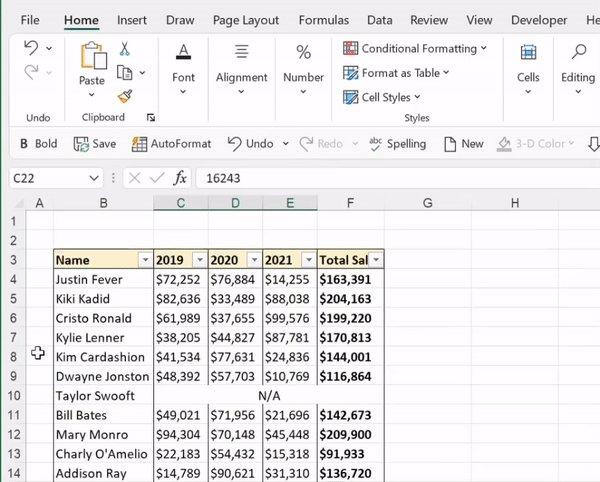
Merged cells can cause issues when selecting data. When I try to select just the 2019 data below, all columns that are merged are automatically selected. This may seem insignificant but will cause problems when referencing the data columns throughout your workbook.
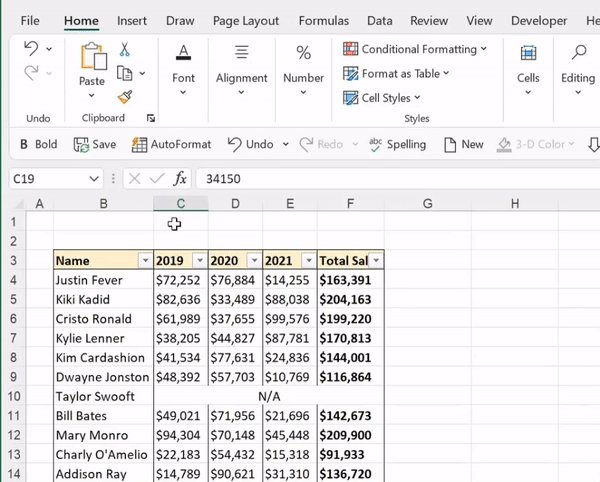
Similar to not being able to select individual columns, you can’t drag cell contents down a column with a merged cell.
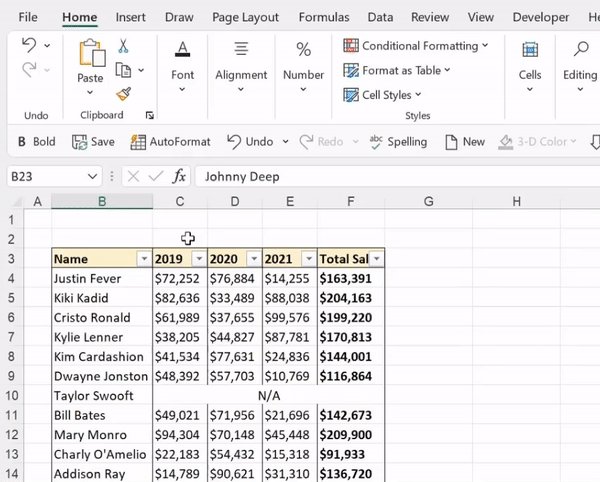
But wait, there’s more. Merged cells can cause problems creating pivot tables, referencing data in formulas, and don’t work well with VBA. If you still feel a strong urge to merge your cells, I have a better alternative for you...
Center Across Selection! This centers text across cells giving it the same aesthetic appeal, without any of the problems in your worksheet. Just open the Format Cells box > Alignment Tab > Select Center Across Selection under the horizontal group and hit okay.

That’s a wrap for my first edition of AutoFill answers, where I answer your most commonly asked questions. For more, make sure to check out the full video on Excel Dictionary’s Instagram or TikTok!
👉instagram.com
👉instagram.com
Loading suggestions...