

A Beginner Guide to Git - (Part 1)
a thread...
a thread...
Git is a version control system, used to track versions of a file, and helps collaborate with developers and work in a team.
It's decentralized in nature, helping the larger team to work together.
It's decentralized in nature, helping the larger team to work together.
Every developer has their own copy of the repository on their machine, they can locally work without the internet on their machine and commit their changes.
Once their work is done they can publish their changes on a remote git repository and share them with other developers.
Once their work is done they can publish their changes on a remote git repository and share them with other developers.
You can also do a hands-on exercise(using GitHub) to practice git along with this thread as well.
Pre-requisite:
Install Git:
git-scm.com
Create an Account on GitHub:
wikihow.com
Add Repository on Github:
docs.github.com
Pre-requisite:
Install Git:
git-scm.com
Create an Account on GitHub:
wikihow.com
Add Repository on Github:
docs.github.com

docs.github.com/en/get-started…
Create a repo - GitHub Docs
To put your project up on GitHub, you will need to create a repository for it to live in.
wikihow.com/Create-an-Acco…
git-scm.com/downloads
Git - Downloads
Git comes with built-in GUI tools (git-g ui, gitk), but there are several third-party tools for user...
git init
It initializes an empty repository as a git repository on your local machine.
As shown below:
We've created an empty folder - "first-repo" and run the "git init" command to mark it as a git repository.
It initializes an empty repository as a git repository on your local machine.
As shown below:
We've created an empty folder - "first-repo" and run the "git init" command to mark it as a git repository.

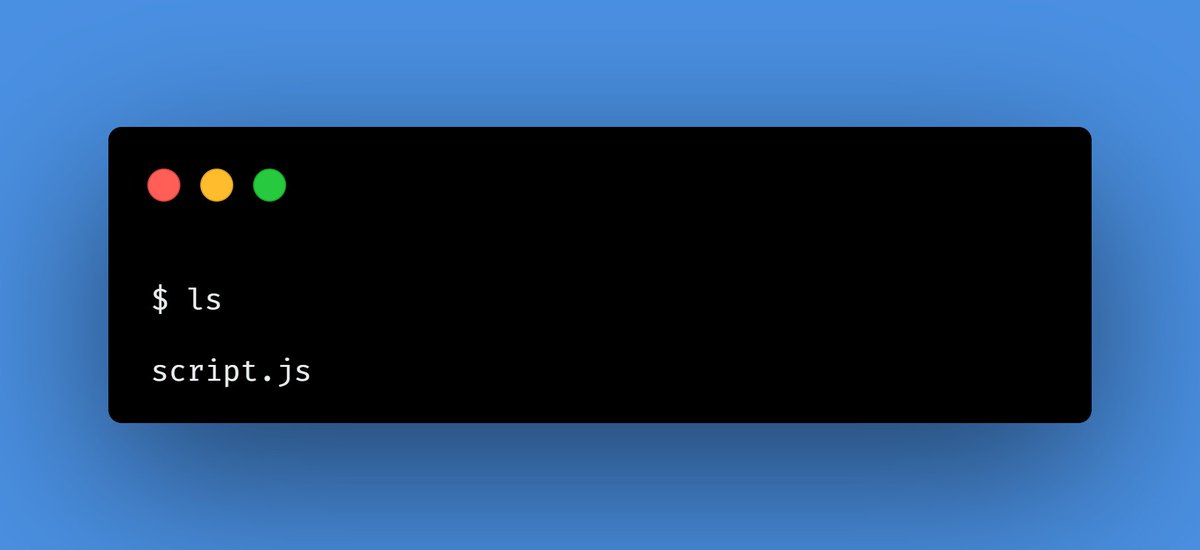
Let's add an empty file - "script.js" in this local git folder - "first-repo".
git status
git status will show a list of all files along with their status.
Newly added files will be "untracked" by git initially.
It is the most frequent command we will use to see file status.
As shown below in the untracked file list we can see "script.js"
git status will show a list of all files along with their status.
Newly added files will be "untracked" by git initially.
It is the most frequent command we will use to see file status.
As shown below in the untracked file list we can see "script.js"

git add
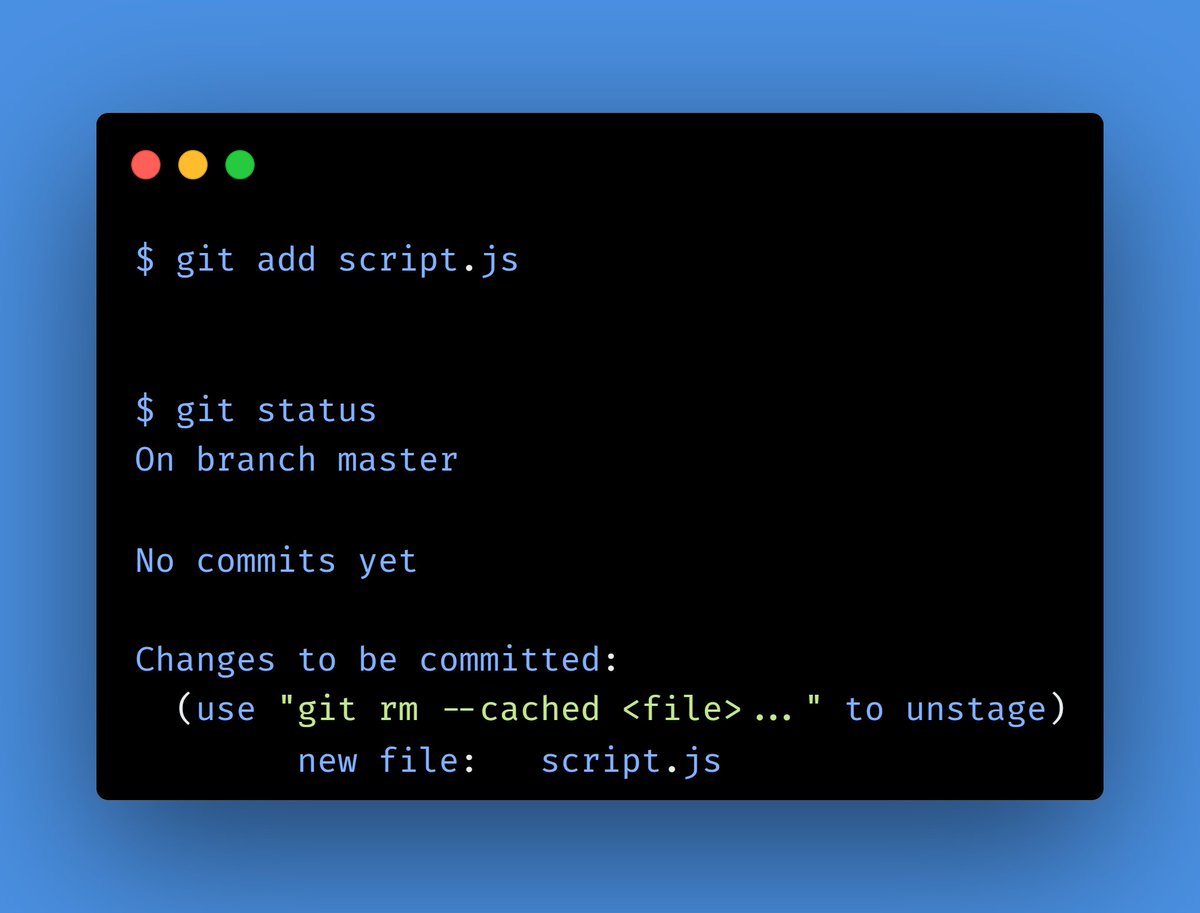
Out of all the untracked files, we can pick which file we want to commit. This is called staging.
Use Below Command to stage a file:
"git add <file>".
Below we've added "script.js" to the stage and then used git status to check its status.
Out of all the untracked files, we can pick which file we want to commit. This is called staging.
Use Below Command to stage a file:
"git add <file>".
Below we've added "script.js" to the stage and then used git status to check its status.
git commit
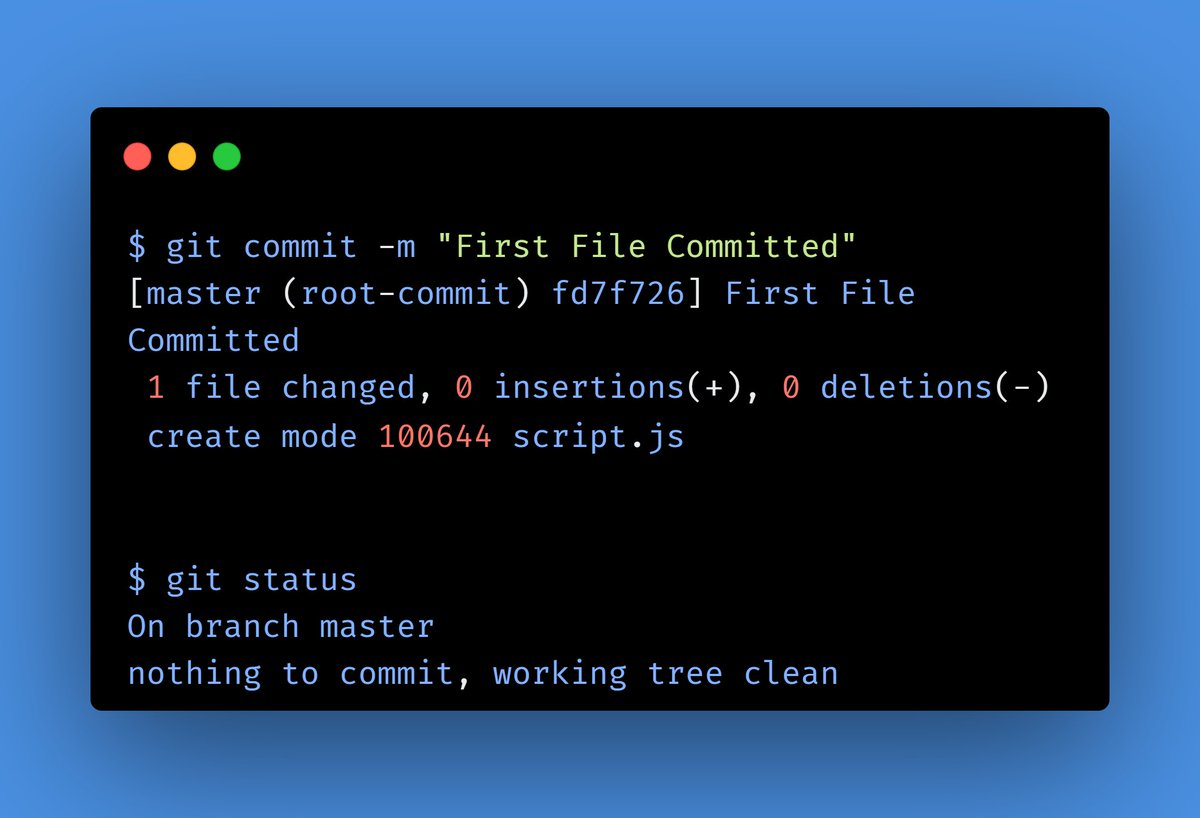
Now, its time to commit the file to our local repository using
"git commit -m <commit-message>"
Below we've committed the "script.js" file with a commit message.
Then we've used git status to see if our commit is successful or not.
Now, its time to commit the file to our local repository using
"git commit -m <commit-message>"
Below we've committed the "script.js" file with a commit message.
Then we've used git status to see if our commit is successful or not.
So far, we've committed the above file in our local repository only. Now it's time to push this file to remote repo.
If you remember, I've asked you to create a repo on GitHub in the prerequisite section. Now it's time to use it. Please get the link to your remote branch ready.
If you remember, I've asked you to create a repo on GitHub in the prerequisite section. Now it's time to use it. Please get the link to your remote branch ready.
git remote
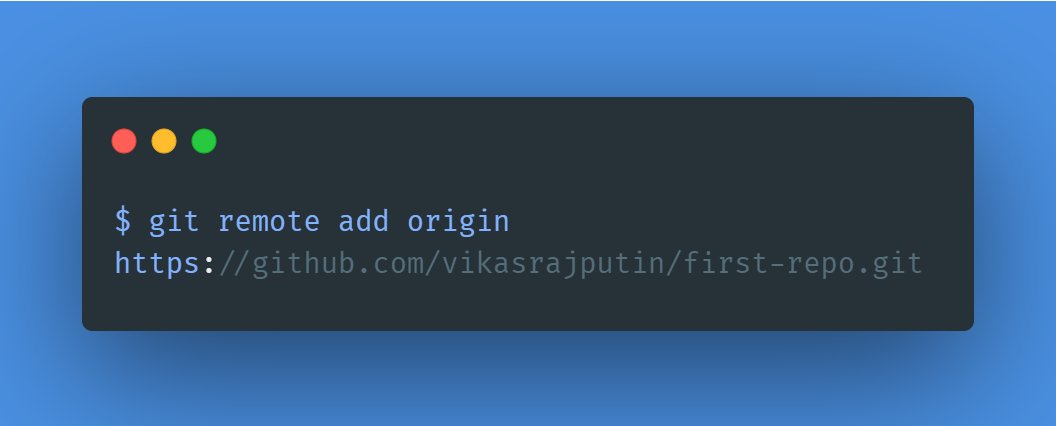
Before sending our code to a remote repository, we need to map our local repo with equivalent remote repo by using the below command:
git remote add origin <remote-repo-url>
As shown below:
Before sending our code to a remote repository, we need to map our local repo with equivalent remote repo by using the below command:
git remote add origin <remote-repo-url>
As shown below:
git push
At last, using the below push command we can send our file to the remote repo.
git push origin <remote-branch-name>
As shown below:
At last, using the below push command we can send our file to the remote repo.
git push origin <remote-branch-name>
As shown below:

This was part 1 in the Git series, On Friday we will see the remaining git commands.
Till then you can practice the above git commands and let me know in the comments if you face any trouble while practicing git.
Thanks for Reading!
Till then you can practice the above git commands and let me know in the comments if you face any trouble while practicing git.
Thanks for Reading!
Namaste, I'm Vikas!
I write a thread every Mon, Wed & Fri on
Java, Javascript & Fullstack Development.
To read all my future threads follow @vikasrajputin
(Next Thread: Friday)
Any Query or Suggestions?
Put them in the comments below.
Happy Coding!
I write a thread every Mon, Wed & Fri on
Java, Javascript & Fullstack Development.
To read all my future threads follow @vikasrajputin
(Next Thread: Friday)
Any Query or Suggestions?
Put them in the comments below.
Happy Coding!
جاري تحميل الاقتراحات...